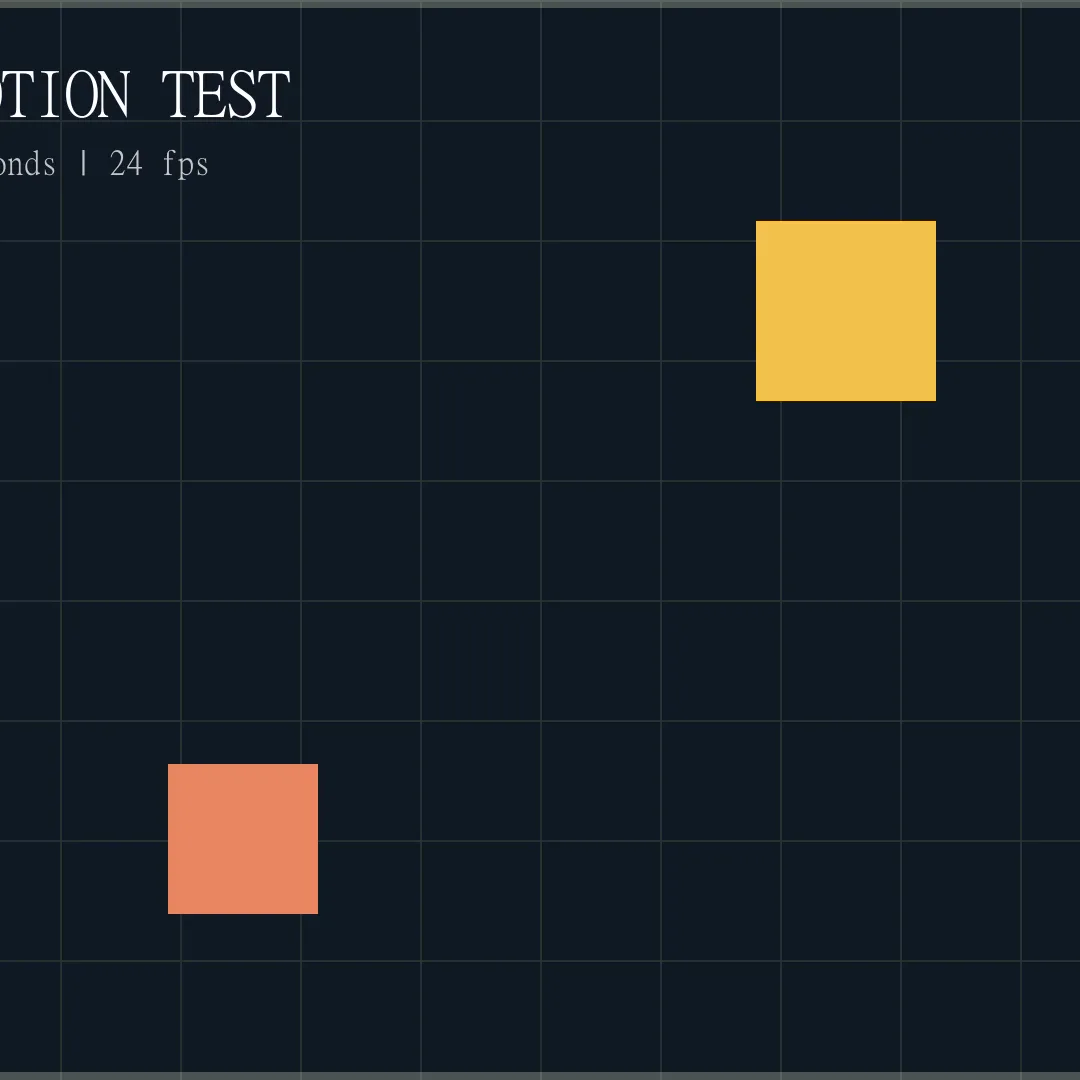
Crop
- Starting video
- 1920 × 1080 · 30 seconds · 385 KiB
- Result
- 1080 × 1080 · 30 seconds · 69 KiB
A centered square crop removes the left and right edges. In this test, the simpler remaining picture also produced a smaller file.
Video editing guide
Crop changes what you see. Trim changes how long it plays. Resize changes its pixel dimensions.
Crop
Remove outer parts of the frame
Trim
Remove time from the video
Resize
Change width and height in pixels
Quick answer
Use Crop to remove unwanted edges, Trim to shorten a clip, and Resize to change its resolution while keeping the picture proportional.
Three different changes
Cropping edits the picture, trimming edits the timeline, and resizing edits the dimensions.
| What changes? | Crop | Trim | Resize |
|---|---|---|---|
| Changes what is visible | Yes | No | Usually no |
| Changes video duration | No | Yes | No |
| Changes pixel width and height | Sometimes | Usually no | Yes |
| Can change aspect ratio | Yes | No | It depends on the scaling method |
| Typical use | Remove black bars or reframe | Remove an intro, ending, or section | Make a 1080p file into 720p |
| Quick Video Tools | Available | Available | Use another editor |
Change the frame
Cropping chooses a smaller area from the existing frame. It changes the visible space, not the playback time. You might crop out black bars, remove a distracting edge, center a subject, or turn a widescreen shot into a square or vertical composition.
For example, a 16:9 landscape video can become 1:1 for a square post or 9:16 for a vertical post. The trade-off is that some of the original picture is no longer visible.
Try Crop Video OnlineShorten the clip
Trimming changes the duration of a clip. If a 30-second video keeps only the section from 00:05 to 00:17, the result is 12 seconds long. The pixels and composition do not need to change.
Traditionally, trimming means adjusting the start or end. Removing a section in the middle is often called cutting or removing a section. The Trim Video tool supports both keeping a selected range and removing one, with fast and precise modes.
Try Trim Video OnlineChange the resolution
Resizing changes resolution: the pixel width and height of the output. A 1920 × 1080 video resized to 1280 × 720 keeps its complete 16:9 picture, but has fewer pixels.
Resolution and aspect ratio are different. The same target canvas can produce very different results depending on how the original picture is adapted:
| Strategy | Full picture visible? | What happens |
|---|---|---|
| Fit | Yes | The whole picture fits inside the new canvas; unused space may remain. |
| Fill | Not always | The canvas is filled, which can crop edges when the shapes differ. |
| Stretch | Yes | The picture fills the canvas but can look unnaturally wide or tall. |
Resize also is not the same as compression: resolution, export quality, audio, and duration all affect file size. Quick Video Tools can crop and trim video, but you will need another editor to resize it.
One video, three measured results
We used one 1920 × 1080, 30-second test video and exported each edit with the same quality settings (H.264, no audio). The stills and measurements below come from those files. They show what each edit changes, not the file size you will necessarily get.
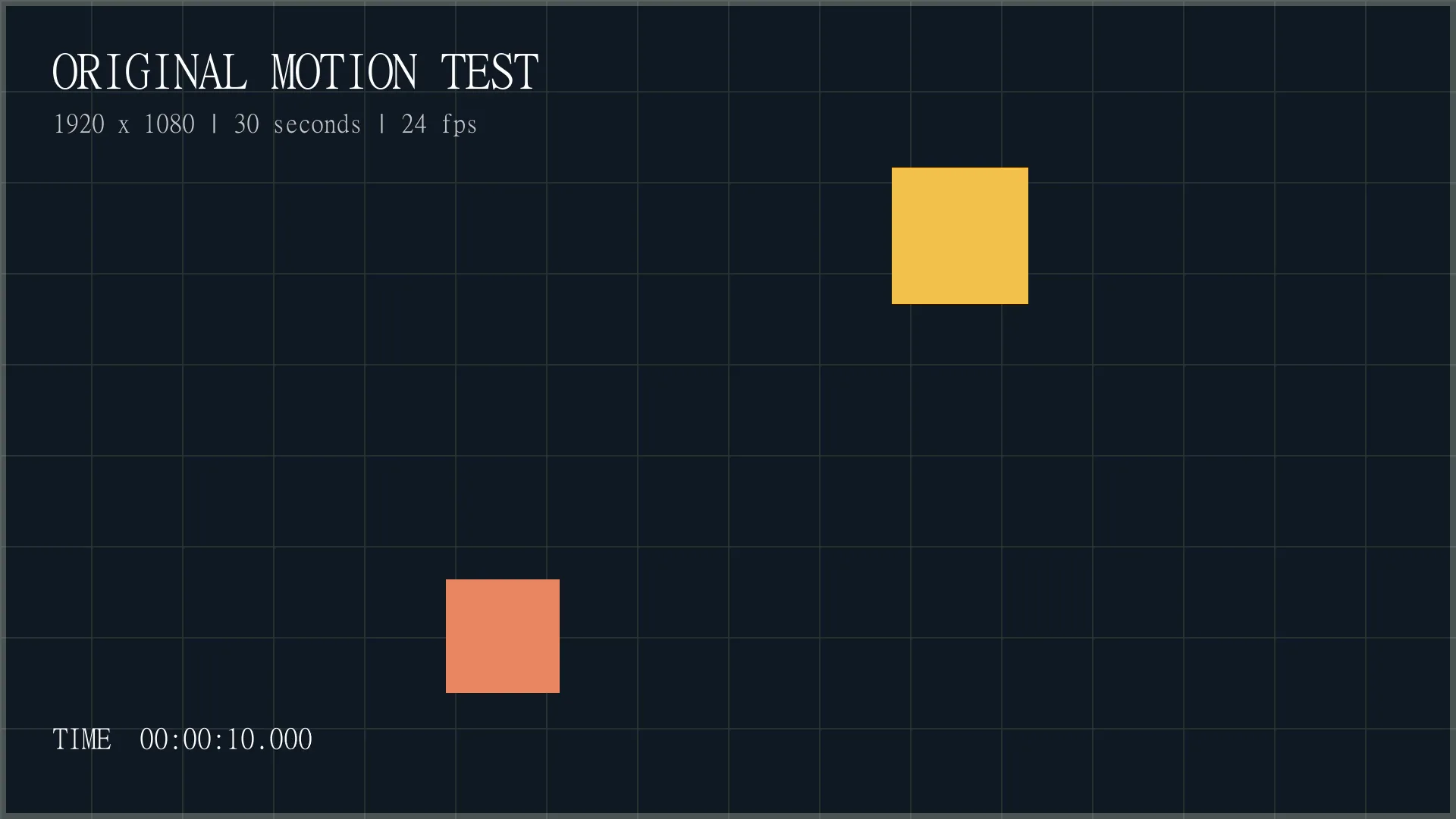
A centered square crop removes the left and right edges. In this test, the simpler remaining picture also produced a smaller file.
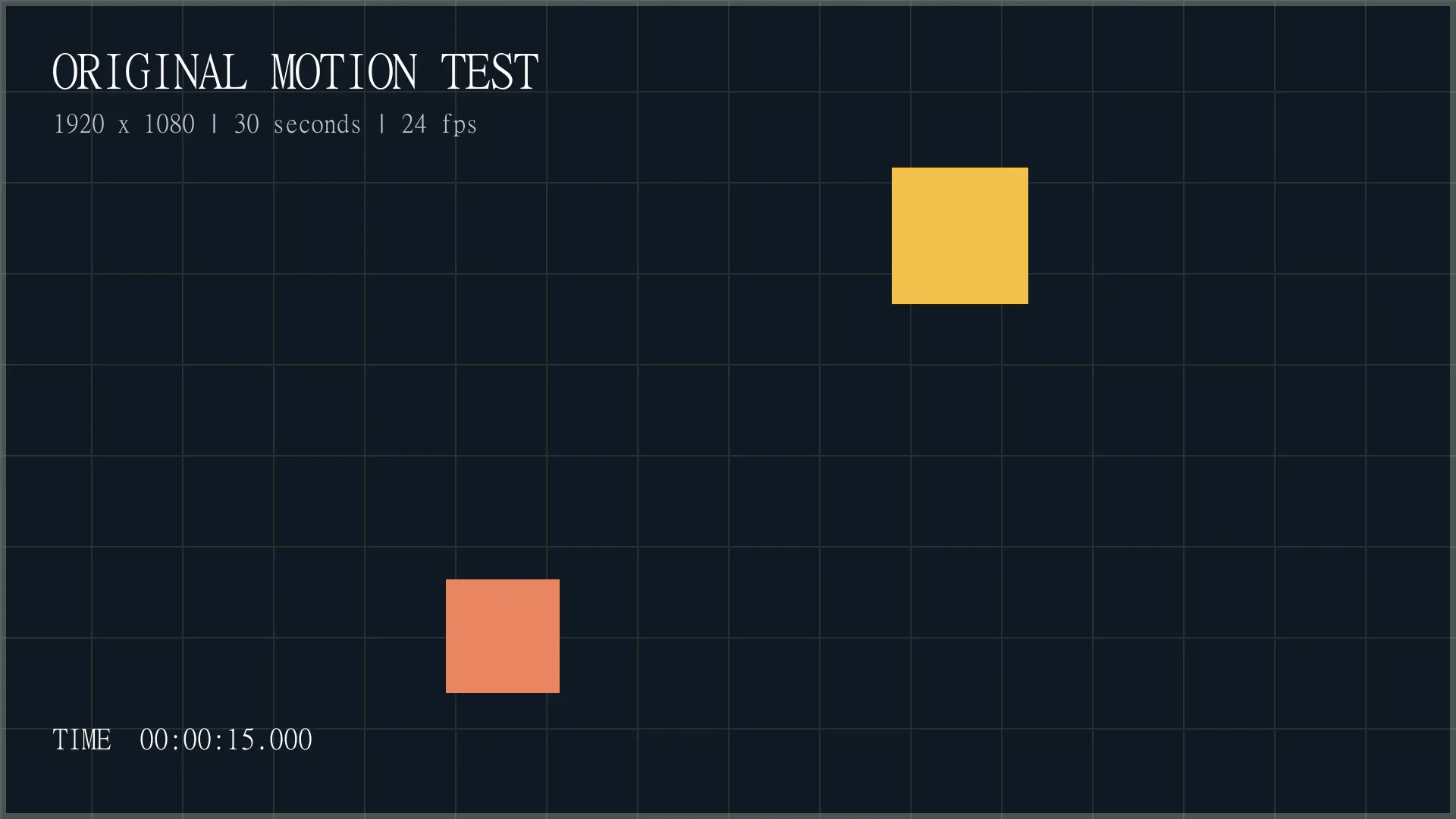
Keeping 00:05 through 00:17 removes 18 seconds while retaining the original frame dimensions.
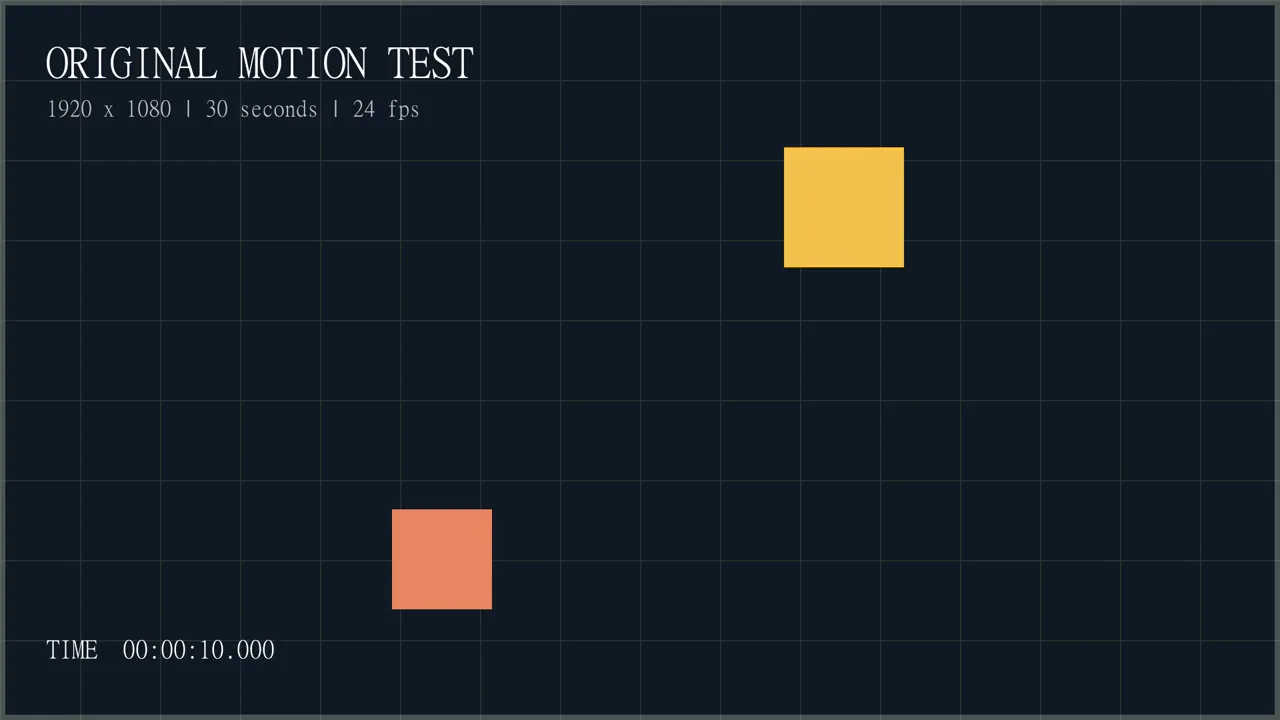
Scaling down preserves the complete 16:9 composition while reducing its pixel count. It is not a crop.
Before you export
An edit describes what changes in a video. Export settings determine much of how the resulting file looks and how large it is. Use this as a decision guide, not a file-size guarantee.
Less of the original picture remains. Exporting again can also affect quality. A crop may make a file smaller, but export settings still matter.
A shorter duration often reduces file size because there is less video to save. The picture dimensions can remain unchanged.
Reducing resolution means there is less image data to save. Enlarging cannot create missing detail and may make a file larger.
Each time you save a compressed video, it can lose some detail. Start with the best original, avoid repeated exports, and choose a quality setting that suits where you will share it.
Choose the change you need
Pick what you want to change, then see what the edit keeps and what it gives up.
I want to change what is visible in the frame.
Use Crop to remove unused edges, black bars, or side areas and make a new composition.
A practical shortcut
Use Trim for an overly long intro, an ending, or an unwanted section. Use Rotate Video first only when the entire source was recorded sideways—not to make a landscape shot vertical.
Use Crop when unwanted edges need to disappear or when a frame must become square or vertical. Use Resize when you need a new resolution but want the full picture to remain visible.
Cropping changes the visible area of each frame. Trimming changes which portion of the timeline plays, so it changes duration but normally leaves the frame alone.
No. Cropping discards parts of the picture. Resizing changes the pixel dimensions of the exported video and can preserve the whole frame when its shape stays the same.
A crop removes available pixels, and exporting a new video can introduce some quality loss through re-encoding. Start with the best-quality source and avoid repeated exports.
It often can because the result is shorter, but final size also depends on resolution, audio, and export quality.
Not always. Reducing resolution can help, but duration, audio, and export quality also determine the final file size. Enlarging a video can make a file larger without adding real detail.
Crop when you need to fill a vertical frame and can lose the sides. Resize when you need different output dimensions while keeping the same picture shape. A 16:9 video stretched to 9:16 will look distorted.