Example result
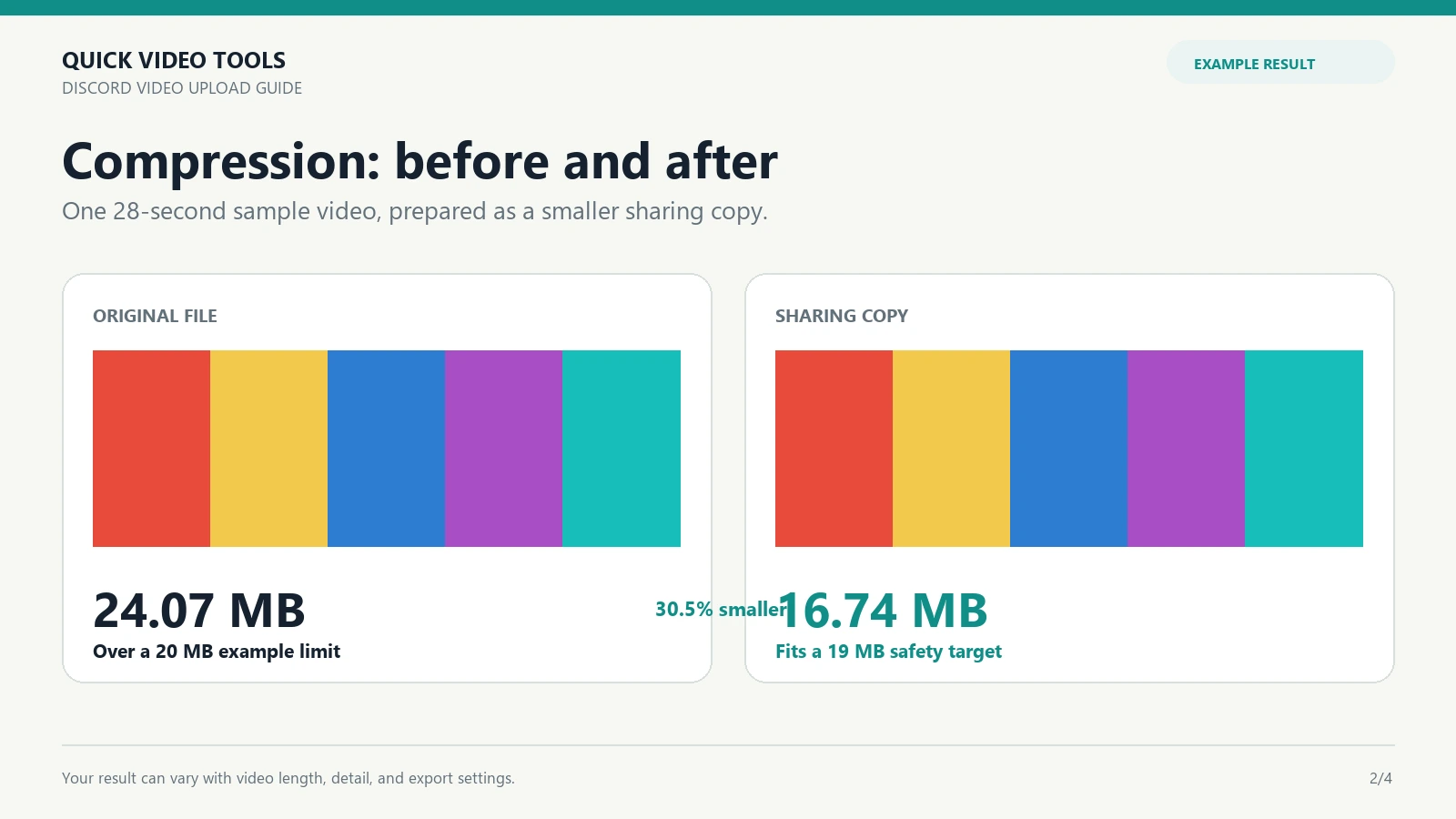
24.07 MB → 16.74 MB
In one 28-second sample video, the file size went from 24.07 MB to 16.74 MB—a 30.5% reduction that fits below a 19 MB safety target. Your result will vary with the video's length, detail, and export settings.
Discord upload troubleshooting
Find out why your video won't upload and choose the right fix for file size, format, permissions, connection, or playback issues.
What happens when you upload?
Compare the file's actual size with the limit shown in your Discord client. A Free account should aim below 20 MB; this site's compressor has a 19 MB preset.
Compress the videoDiagnose before you convert
“Discord video not uploading” describes several different failures. The message, channel, and whether the file appears in the chat matter more than the extension alone.
| Symptom | Likely cause | First check |
|---|---|---|
| File too large | Your account limit is lower than the video’s actual size | Check the size, then compress or trim a copy |
| Upload Failed / Retry | Connection, client, or service problem | Try a small file and check your network |
| Stuck on Uploading | Interrupted connection or upload processing | Switch network or try another Discord client |
| One channel only | Attach Files permission | Ask an admin to check the channel permission |
| MP4 or MOV fails | Codec, file damage, or compatibility | Try a known-good MP4 or re-export the file |
| Uploaded but no preview | Playback support or embed processing | Download it and test in another player |
Work through the likely causes
Open the file details and compare its actual size with the limit shown by Discord. Do not rely on a rounded size in a gallery view. For a standard Free account, aim below 20 MB; the compressor's 19 MB preset leaves a small margin.
Only size problems call for compression. Make a sharing copy, verify the finished file size, and keep the original. A smaller file cannot guarantee that a separate permission, network, or service problem disappears.
Upload a small, known-good MP4 to a DM or another channel. If the test works but the original does not, investigate file size or compatibility before reinstalling Discord.
If you can upload elsewhere but not in one channel, ask an administrator to check whether your role has Attach Files permission. This is a channel setting, not a video conversion issue.
Retry on a stable connection and avoid switching networks while the upload is in progress. A stuck upload is different from a clear file-size error, so test the connection before changing the video.
Restart the desktop or mobile app, refresh the browser version, and install available updates. Testing another client or browser can help separate a local app problem from a file problem.
If even small files fail in multiple places, check Discord's official status page before spending time re-exporting your video. A temporary service incident needs a retry later, not a new codec.
For Discord's own status information, visit Discord Status.
A local check, not an upload
Discord's File Attachments FAQ lists a 20 MB Free limit, 50 MB for Nitro Basic, and up to 1 GB for Nitro. Limits can vary with account changes or experiments, so use the limit shown in your client as the final reference.
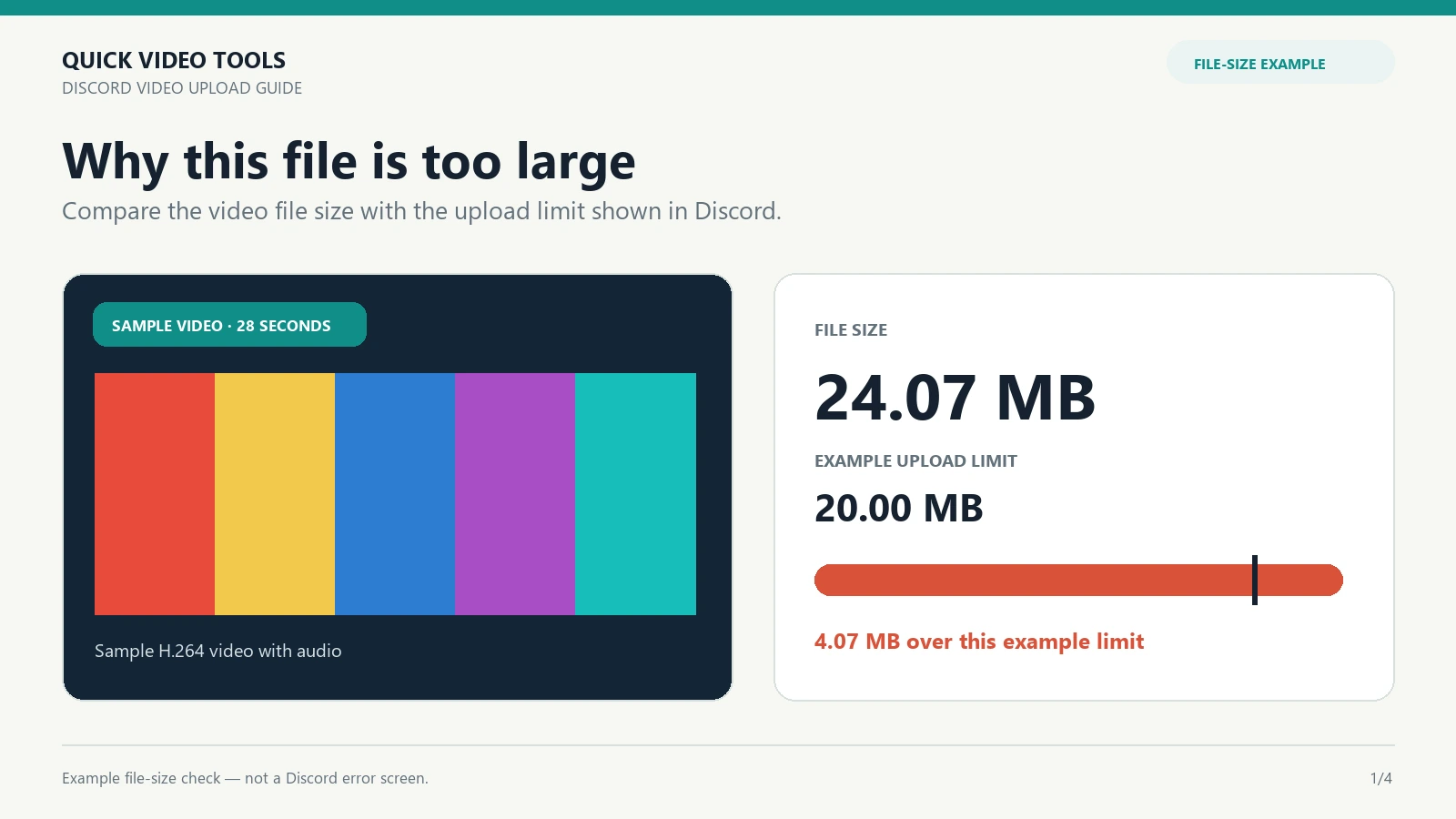
Discord upload size checker
This reads only the selected file's size in your browser. It does not upload, inspect, or process your video.
Example result
In one 28-second sample video, the file size went from 24.07 MB to 16.74 MB—a 30.5% reduction that fits below a 19 MB safety target. Your result will vary with the video's length, detail, and export settings.
Practical workflow
For a long recording, first Trim Video Online to remove unused moments. Then make a sharing copy with Discord Video Compressor and verify its final size. Keep the original unchanged.
This site accepts inputs under 200 MiB and exports MP4 by default. Reaching a target size does not guarantee every Discord upload will succeed.
Extension is not the whole format
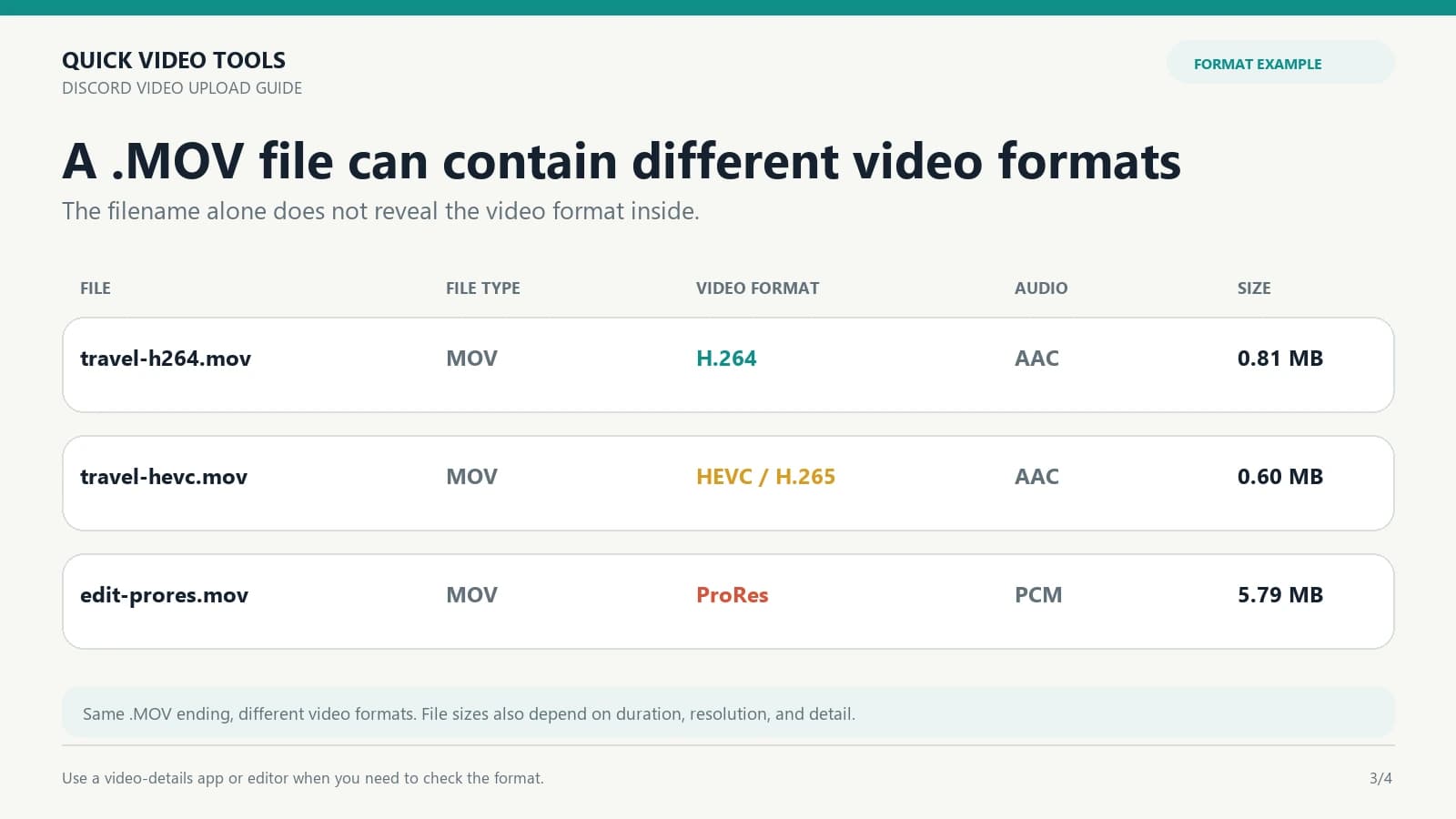
.mp4 and .mov are file wrappers. The filename alone does not tell you exactly which video format is inside. Discord's attachment guidance lists MOV and MP4 files using H.264, HEVC/H.265, or AV1, but a file that uploads is not automatically guaranteed to preview or play on every client.
If a specific video fails, make a separate H.264 MP4 export as a compatibility test. That can help with an unusual codec or a damaged export, but it is not a universal fix for a network, permission, or service error. For a large MOV, try the MOV Compressor only when it can open the source; professional ProRes and HDR workflows need an editor that preserves those formats.
Compatibility test, step by step
Connection and client checks
Use the same small test video on a second connection or client. Change one variable at a time so you can tell a file problem from an app, browser, or network problem.
On mobile, Discord's upload quality and Data Saver options affect data use and upload quality. They do not mean an oversized original can always pass the attachment limit. In particular, do not assume the app's compression will bypass the file-size check.
A different problem after upload
Do not repeat a compression workflow until you know whether the upload failed, the attachment is unavailable, or only Discord's preview is missing.
| What you see | What it suggests | Next action |
|---|---|---|
| No attachment in the message | The upload did not complete | Check file size, connection, permissions, and service status. |
| Attachment downloads but has no preview | The upload may be fine; preview support can differ | Play the download locally and try another Discord client. |
| Download will not play locally | The exported file may be incomplete or incompatible | Export a new H.264 MP4/AAC sharing copy from the original. |
| Plays locally and on another client | Likely a client-side preview or display issue | Update or restart the affected client; avoid re-encoding solely for the preview. |
Prepare before you send
Start with the file size and account limit. Make a smaller sharing copy rather than overwrite the source.
Use a known-good H.264 MP4 when compatibility is uncertain, then verify playback after export.
For an extremely large or important original, use desktop software or share a file link instead of an aggressive attachment export.
Sources last checked October 24, 2026: Discord File Attachments FAQ · Discord Permissions FAQ.
How to read the examples
These examples show file sizes and video formats from sample files. They do not test Discord account limits, channel permissions, or network conditions.
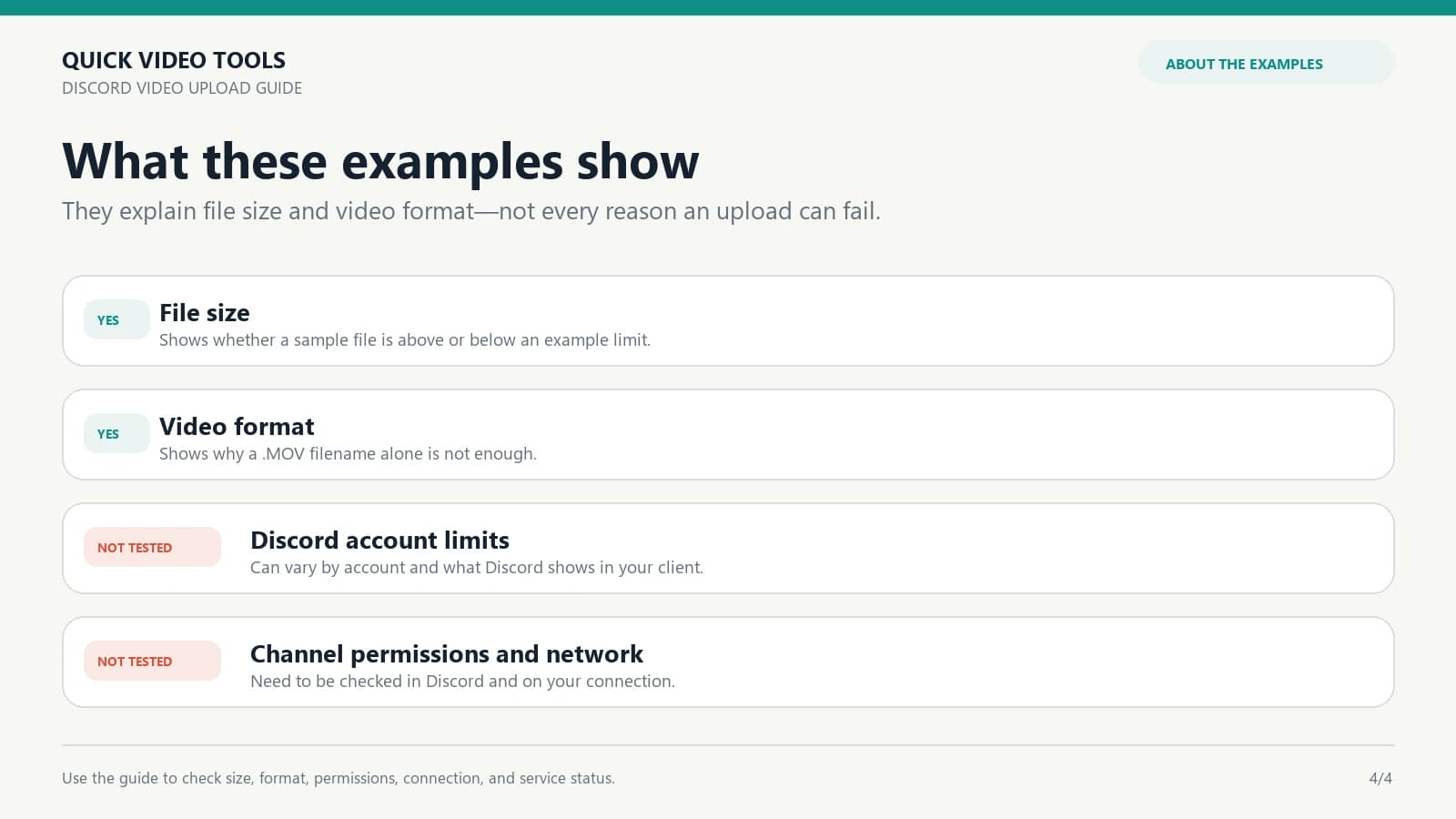
Start with the file's actual size, then test a small MP4 in a DM or another channel. If that works, the original file's size or compatibility is more likely than a general Discord outage.
The video is over the attachment limit for your account or the limit shown in your client. Check the final file size, then trim or compress a copy if needed.
A stuck upload can result from an unstable connection, an app or browser problem, or a temporary Discord service issue. Try another network, update or restart Discord, and test a small file.
Discord's File Attachments FAQ lists MOV, but a .mov extension does not identify the internal video codec. If a particular MOV fails, try a compatible H.264 MP4 export or a supported local editor.
Uploading and playback are separate checks. Confirm that the attachment downloaded, test it in a system player, and try another Discord client. A missing preview does not necessarily mean the file failed to upload.
The channel may deny your role the Attach Files permission. Ask a server or channel administrator to check that permission.
Use the limit displayed in your Discord client. If a video exceeds your available limit, make a smaller sharing copy or send a file-sharing link instead of assuming in-app compression will bypass the limit.
Confirm that Discord can access the selected file or photo library, try a stable Wi-Fi or mobile connection, and check the original file size before retrying. Mobile upload quality settings do not guarantee an oversized original will upload.