01Available here
Crop to fill
Fill the phone screen with the part of the shot that matters. This works best when the person, product, or action is close to the middle.
Best for: Centered people, talking heads, product close-ups
Landscape → portrait guide
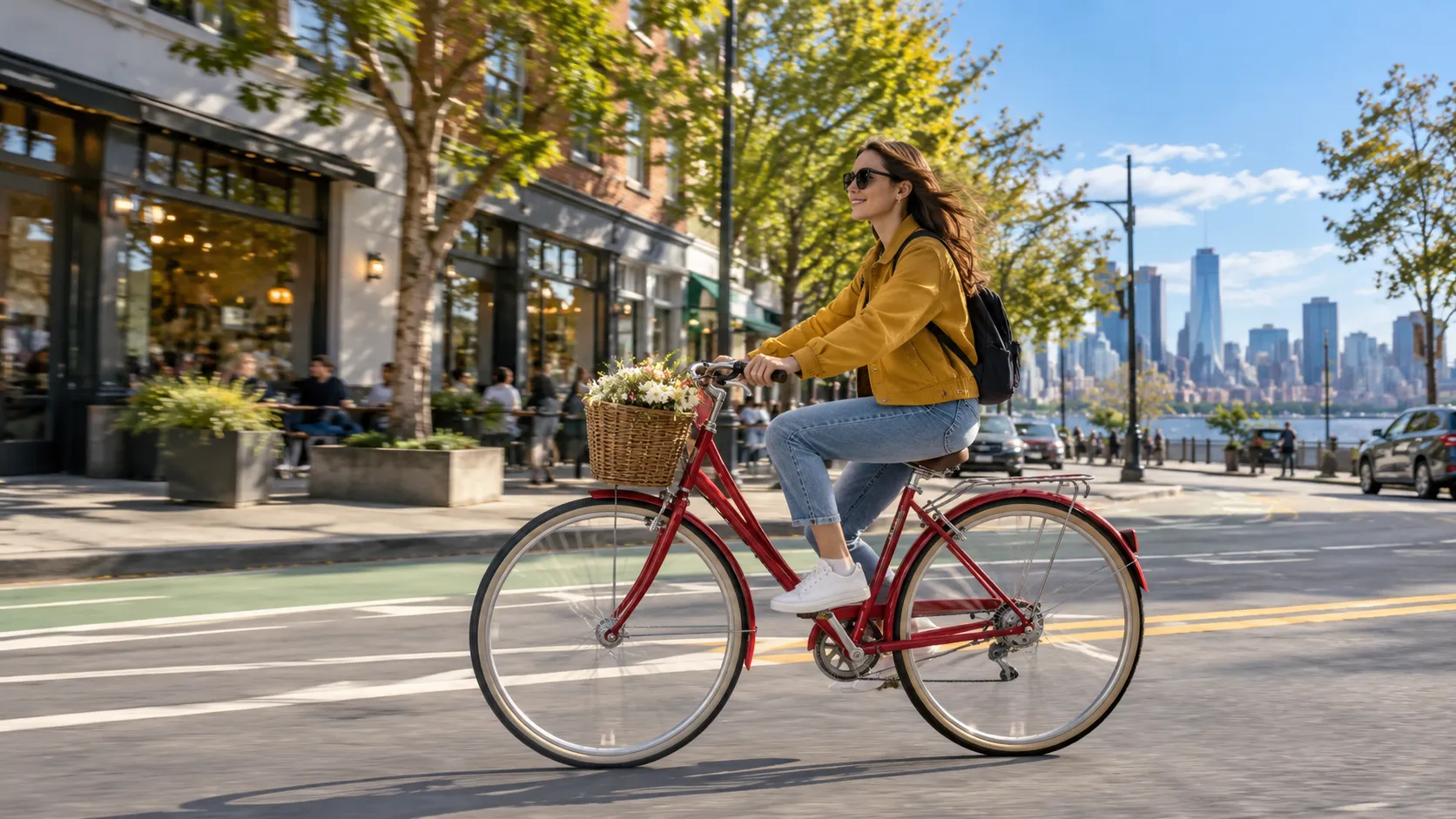
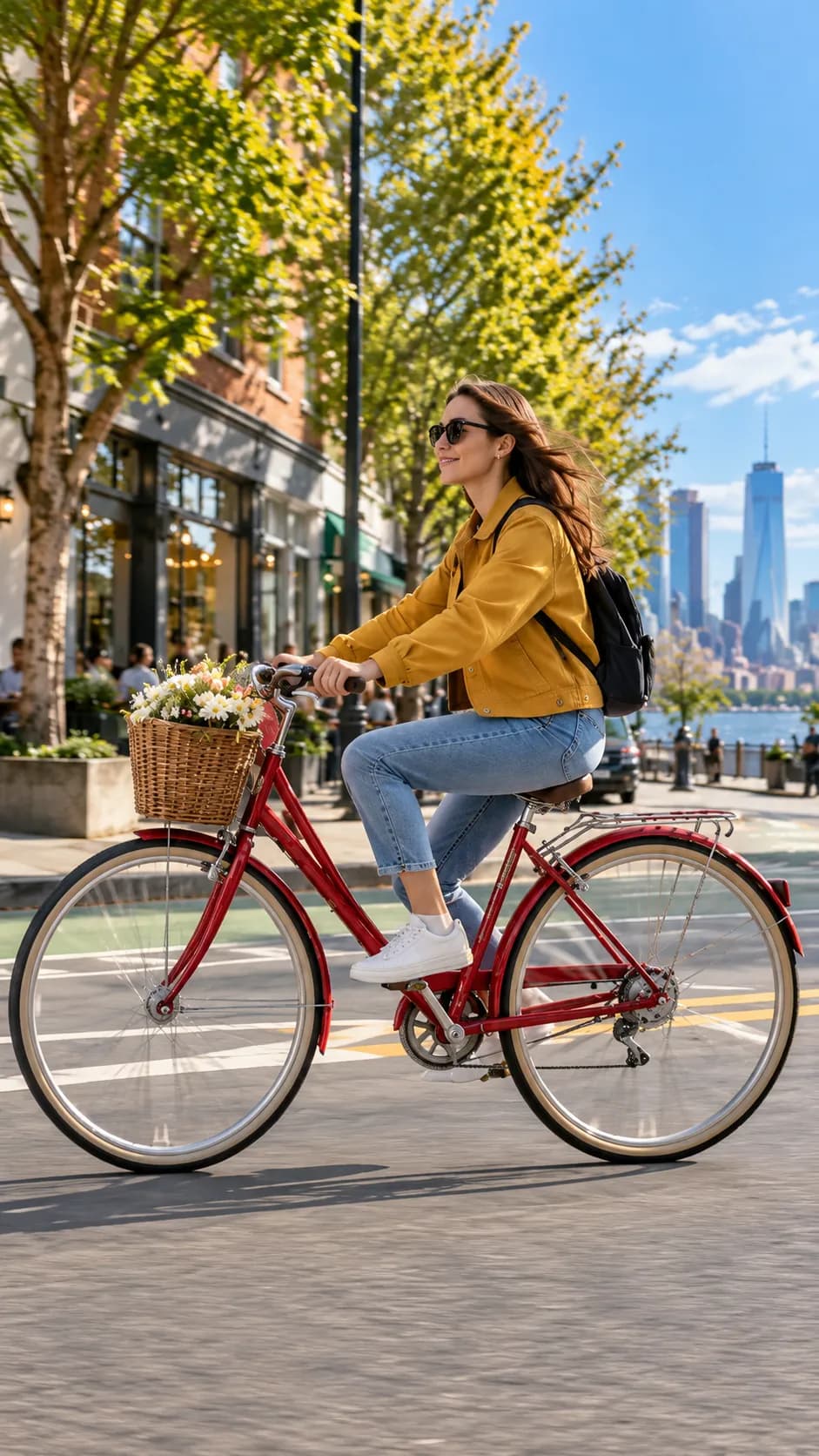
Turn a 16:9 landscape video into a 9:16 vertical clip for TikTok, Instagram Reels, or YouTube Shorts—without guessing which parts of the frame you will lose.
Original 16:9
Crop 9:16
Quick answer
Set a 9:16 crop, move the frame to keep your subject visible, then export. If every part of a wide shot needs to remain visible, use a vertical canvas with a background in an editor that supports it instead.
Use the existing cropper
The crop frame stays in one place for the whole clip, so position it for every moment that matters. It does not automatically follow a person.
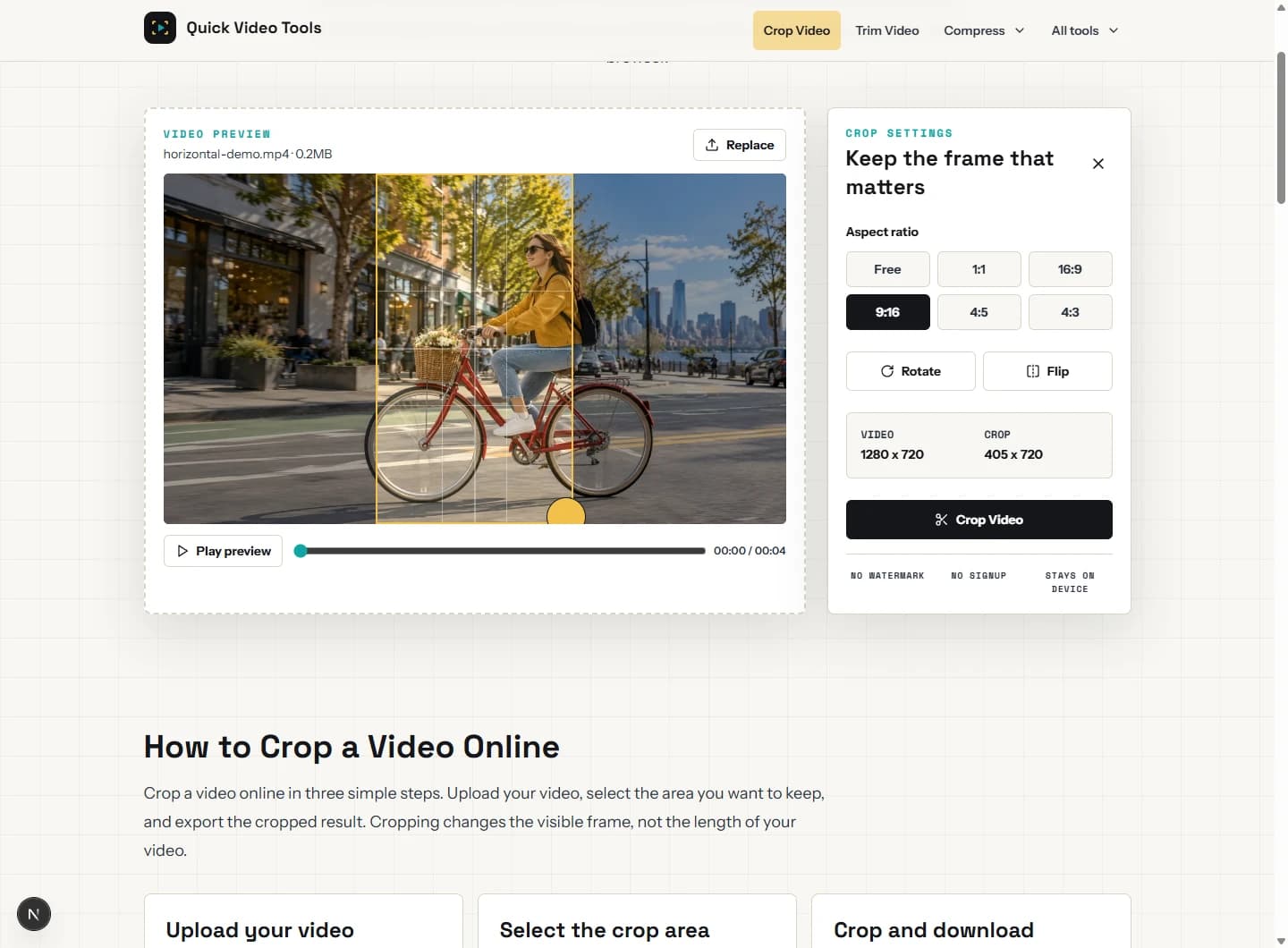
Open Crop Video Online and choose an MP4, MOV, or WebM video. Some video files may not open in every browser.
Choose 9:16 under Aspect Ratio. The cropper places a centered vertical frame over your landscape video.
Drag the frame so the person or important action stays inside it. Check more than one point in the video when your subject moves.
Select Crop Video, wait for processing, and download the new MP4. The crop changes what is visible, not the clip length.
Choose for the shot, not just the platform
Fill the phone screen with the part of the shot that matters. This works best when the person, product, or action is close to the middle.
Best for: Centered people, talking heads, product close-ups
Keep the entire wide frame and use a soft duplicate or a solid color behind it. The result is vertical, but the main video stays landscape-sized.
Best for: Group shots, gameplay, screen recordings
Move the crop over time to follow a subject. This needs keyframes or an auto-reframe editor; a single fixed crop cannot follow someone across the frame.
Best for: Walking people, sports, moving subjects
The math behind the crop
A 9:16 crop from a 1920 × 1080 landscape video is approximately 608 × 1080. It keeps a tall central slice of the original image—not an automatically upscaled 1080 × 1920 video.
1920 × 1080
Original landscape
≈608 × 1080
9:16 crop area
31.64%
Width retained
Exact pixel dimensions can vary slightly. Cropping removes pixels from the sides, and exporting the new video can reduce quality slightly.
9:16 is the shared starting point
Start with 9:16, keep faces and the important action inside the crop, and leave breathing room around the edges for each app's controls and captions. TikTok for Business recommends a 9:16 vertical video, safe zones for text and captions, and exports of 1080 × 1920 or higher. Google Ads likewise says 9:16 vertical assets are best suited to Shorts and are prioritized in some Shorts brand campaigns.
Those are platform production targets, not a promise that this cropper exports at 1080 × 1920. It keeps the source's cropped resolution and does not automatically upscale a 16:9 video.
Sources: TikTok for Business video guide · Google Ads: YouTube Shorts asset specs
TikTok
Keep text and captions in safe areas so controls do not cover them, then check that the subject remains in the crop.
Instagram Reels
Keep faces and the key action inside the vertical frame before exporting. Leave room around the edges for the app interface.
YouTube Shorts
Recompose the landscape source for comfortable full-screen phone viewing; Google Ads notes horizontal video may appear with blurred top and bottom areas in the Shorts experience.
When the whole wide shot matters
Cropping is not the right choice for every video. A blurred background or a solid-color canvas can preserve the whole landscape frame while still producing a vertical file. That method needs an editor with background fill; it is not a setting in this cropper.
Uses the full phone screen, but removes the sides.
Keeps the frame intact, with a background above and below.
Follows movement only in an editor with keyframes or auto reframe.
Avoid a bad export
Move the fixed crop frame and inspect the whole clip. If the person crosses the frame, use dynamic reframing in another editor or retain the full shot with a background.
Do not expect a crop to create missing detail. Begin with the highest-quality source and avoid repeatedly exporting the same video.
Crop does not correct orientation. Rotate the video first if the full image is actually sideways.
Bars may be part of the source or the player. Crop them out when they are unused edges, or use a background-fill editor when the wide composition must stay whole.
Ready to reframe?
Choose the part of your landscape video worth keeping, preview the frame, and download an MP4 without a watermark.
Crop your video to 9:16Yes. An editor can place the full landscape video on a 9:16 canvas and fill the unused space with a blurred or solid-color background. Quick Video Tools currently offers cropping, not background fill.
Open the video cropper, select the 9:16 aspect ratio, move the crop frame over the part of the picture you want to keep, then export the MP4.
Cropping removes pixels from the sides, and exporting creates a newly encoded file, so some quality loss is possible. Start with the best-quality original you have.
Yes. You can use the Quick Video Tools cropper for free in a compatible browser, without an account or watermark.
No. Rotating turns the whole picture sideways. Making a landscape video vertical changes its canvas or crop. Use the video rotator only when the original was recorded in the wrong orientation.