Choose your video
Select an MP4, MOV, or WebM file. Once the video opens, you can see its size and length.
Free online video frame extractor
Extract one image or multiple frames from MP4, MOV, and WebM videos. Choose a moment or a time interval, then download JPG, PNG, or a ZIP of images. Free, private, and no signup.
Free video frame extractor
Save any moment as JPG or PNG, or take multiple images from your video and download a ZIP.
Up to about 210 MB · No watermark · Stays on your device
How it works
A video frame extractor turns moments in a video into still pictures. Use Single Frame to save a JPG or PNG from a particular time. Use Multiple Frames to save a series of images at regular intervals or choose how many images you want. You can download the whole series in one ZIP file.
To change the visible area of a moving video instead, use the video cropper. To change its pixel dimensions, use the video resizer.
Select an MP4, MOV, or WebM file. Once the video opens, you can see its size and length.
Save a single picture from a moment you select, or set an interval or image count for multiple frames. Choose PNG or JPG as the output format.
Preview the captured images. Download one frame or save the whole sequence in a ZIP with timestamps in the file names.
Choose the right setting
Choose Single Frame when you need one specific picture, or Multiple Frames when you want pictures taken throughout a clip. Preview each result before downloading.
| What you need | Select in the tool | What you can download |
|---|---|---|
| A specific image for a thumbnail | Single Frame · choose a time | One JPG or PNG |
| Pictures every 1 or 2 seconds | Multiple Frames · By time interval | Images individually or one ZIP |
| Exactly 10 or 20 sample images | Multiple Frames · By number of images | An evenly spaced set in a ZIP |
| Pictures from just part of a clip | Multiple Frames · set Start and End times | Images from that selected range |
Pictures are taken at the times you choose. This tool does not automatically find scene changes, create a collage, or save every single frame from a video.
Choose one moment
Need a still image from an MP4? Choose Single Frame, play or drag through your video, then select Extract Frame. The tool saves the video picture itself as a PNG or JPG instead of taking a screenshot of the whole browser window.
Use the 0.1-second buttons to move a little earlier or later. This is a time adjustment, not a guaranteed one-frame step. The result shows the time you selected and the image dimensions so you can check it before downloading.
You can also type a time such as 12.500 seconds to choose a particular moment. If the picture is a little earlier or later than you expected, adjust the time and try again.
This mode is useful when you want to extract an image from video for a slide, a reference image, or a simple video thumbnail.

Save a series of pictures
Turn a clip into a sequence of pictures without capturing every screenshot manually. Choose a fixed number of images or extract at regular times such as every second, every two seconds, or every five seconds. Download individual frames or one ZIP of the sequence.
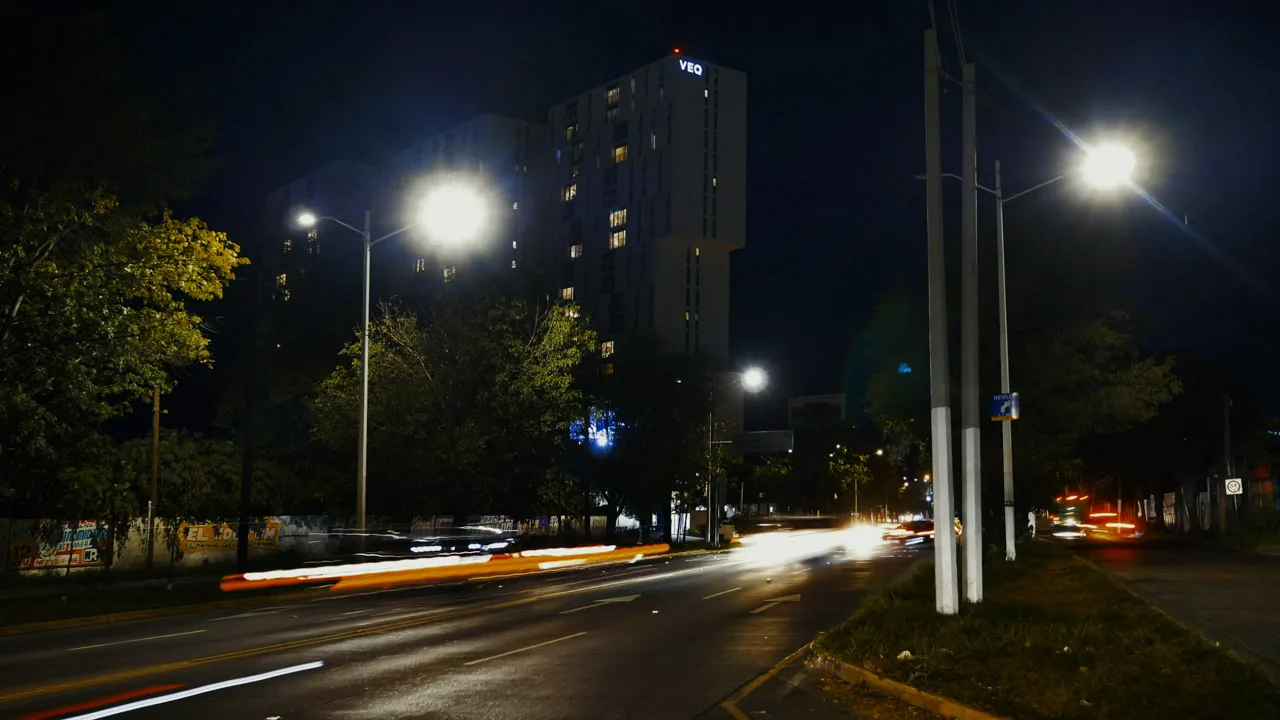
0.0s
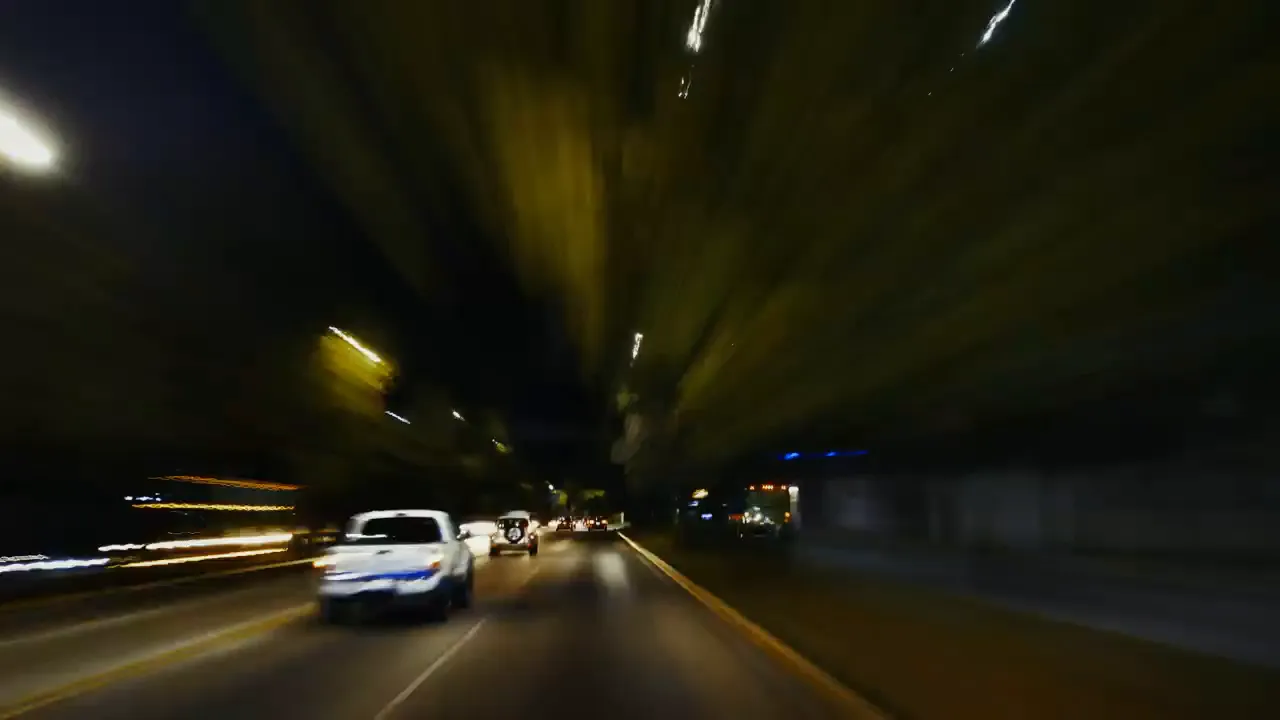
2.0s

4.0s

6.0s
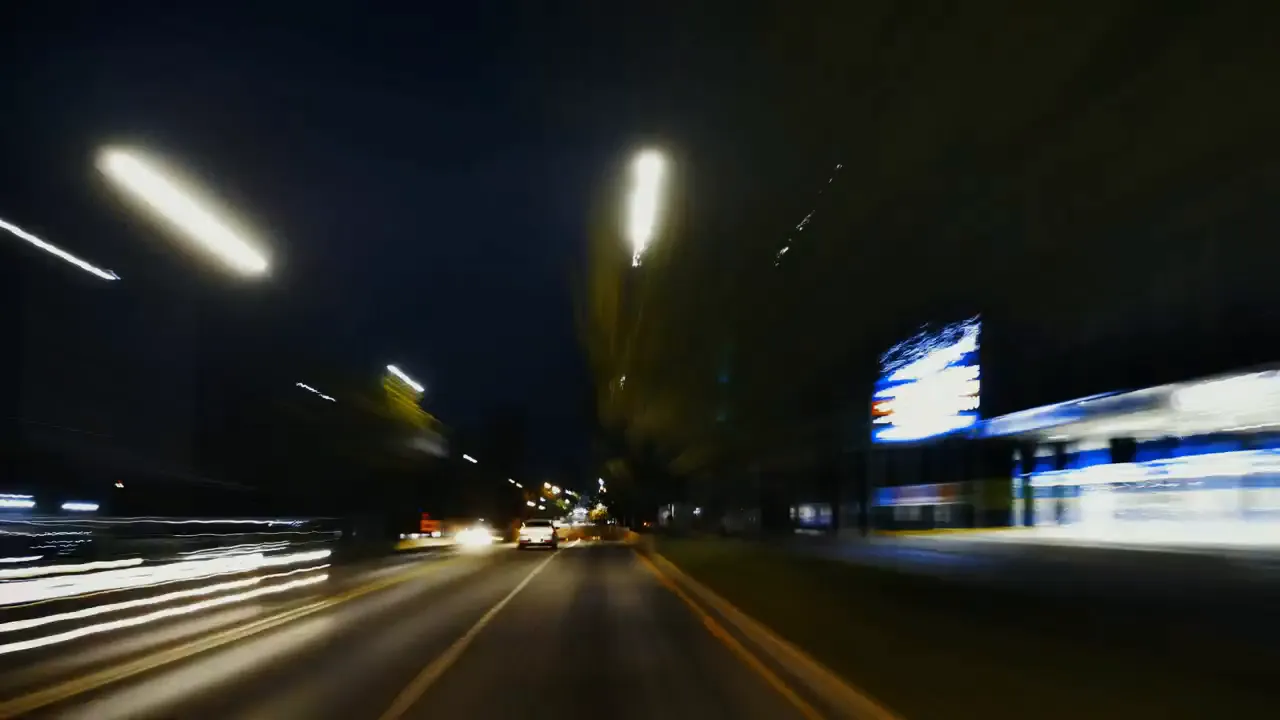
8.0s
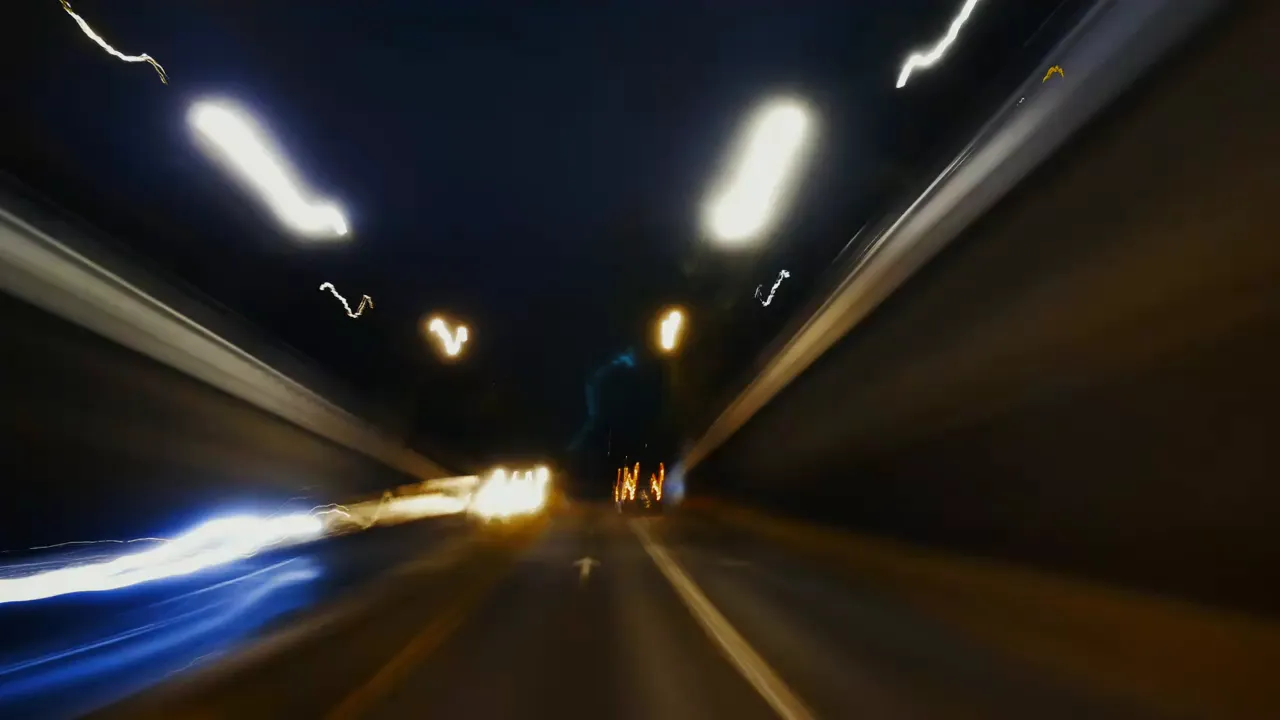
10.0s

12.0s
0–12s of 14s
Seven images, saved individually or as one ZIP.
Choose an interval to take pictures regularly through a selected part of the video. Short intervals create more frames, so the extraction may take longer and the ZIP can be larger.
Example: a 30-second video gives you 15 pictures when you choose Every 2 Seconds (at 0, 2, 4 ... 28 seconds).
Choose 5, 10, 20, 50, or 100 images. The tool spreads pictures evenly across the part of the video you select. Use them to review a clip or plan a storyboard.
Example: choosing 10 images from a 60-second clip saves pictures near 0, 6, 12, and so on through 54 seconds.
| Video length | Extraction interval | Images |
|---|---|---|
| 30 seconds | Every 1 second | 30 images |
| 30 seconds | Every 2 seconds | 15 images |
| 60 seconds | Every 5 seconds | 12 images |
| 120 seconds | Every 10 seconds | 12 images |
These examples start at 0 seconds and stop before the end of the video. Some files may save a picture slightly earlier or later than the time you selected.
Suppose you only need pictures from the middle of a longer clip. In Multiple Frames, enter Start 10 and End 22. The selected range lasts 12 seconds.
10, 12, 14, 16, 18, 20
Six pictures to save individually as JPG/PNG or together in a ZIP.
10, 12.4, 14.8, 17.2, 19.6
Five pictures spaced evenly through the selected 12 seconds.
The end time of 22 seconds is not included. A picture may show a moment just before or after the listed time, and two times can sometimes produce the same image.
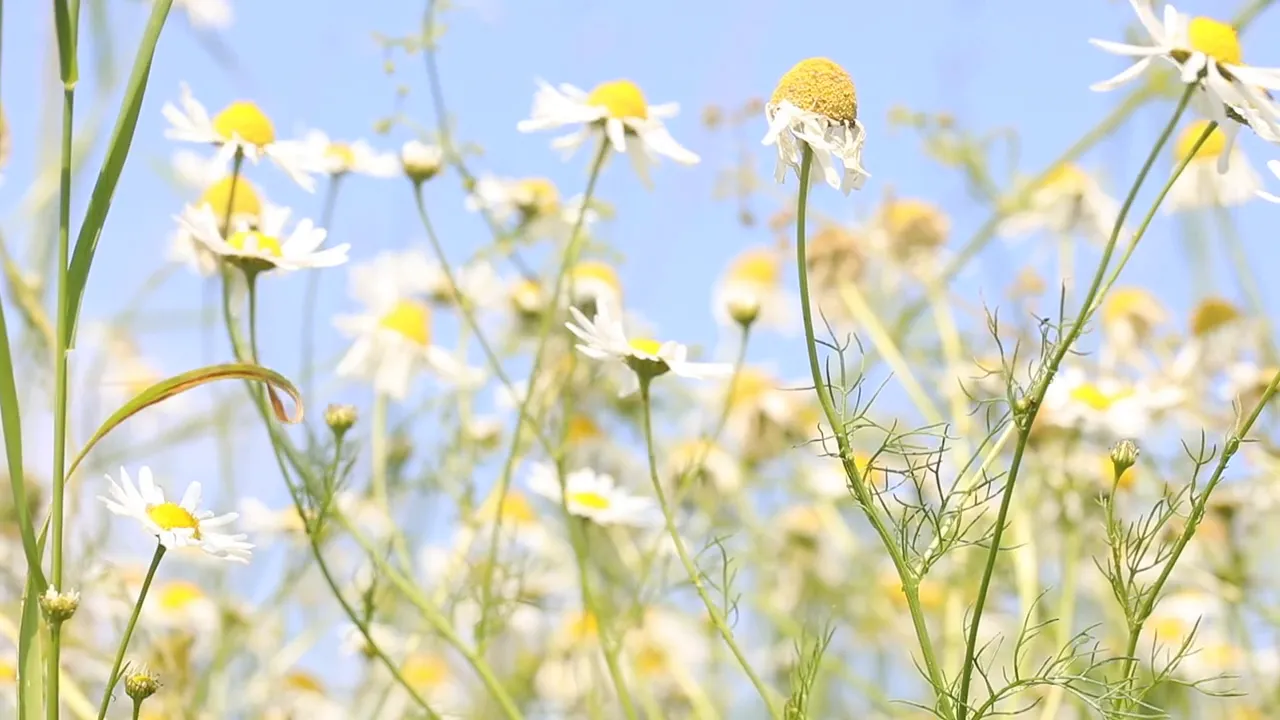
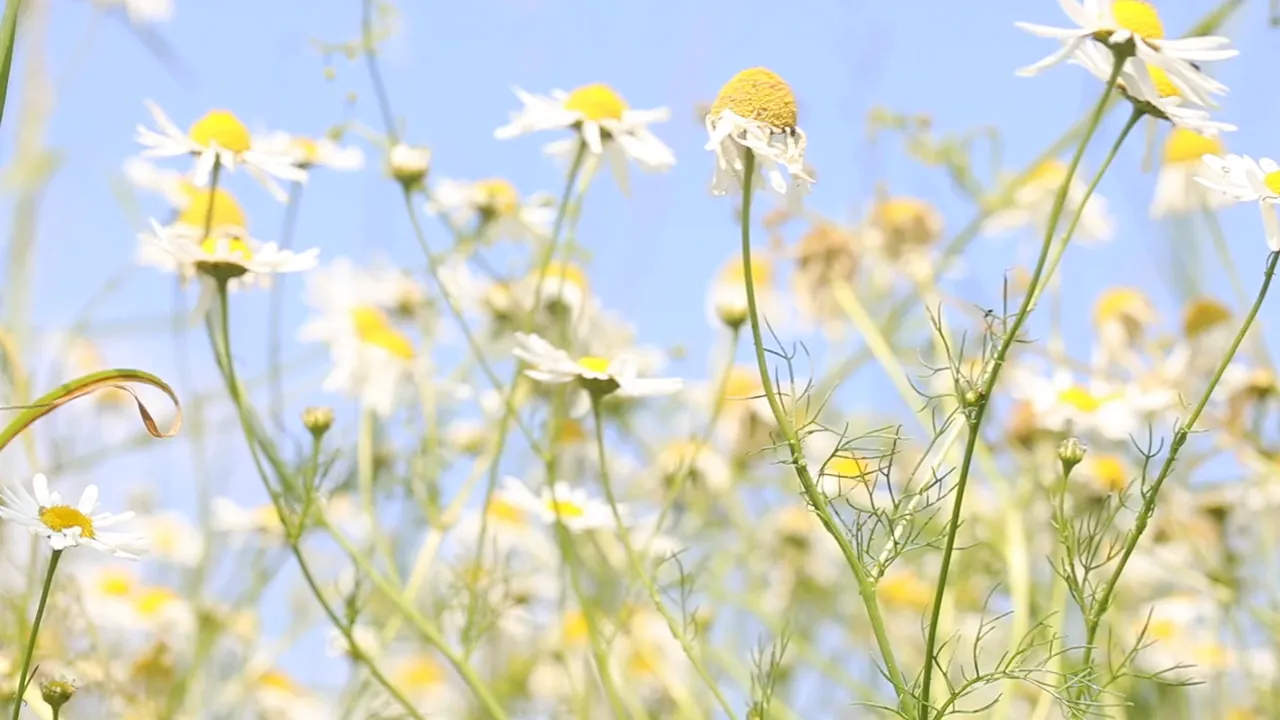
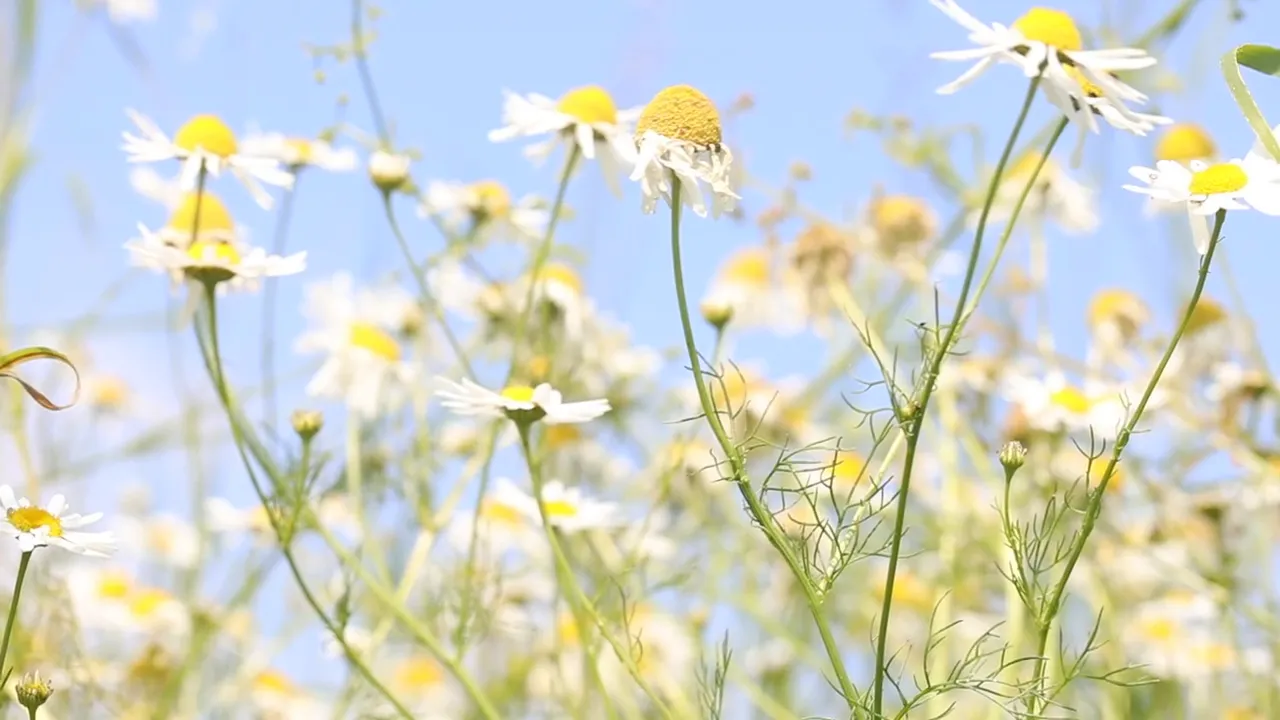
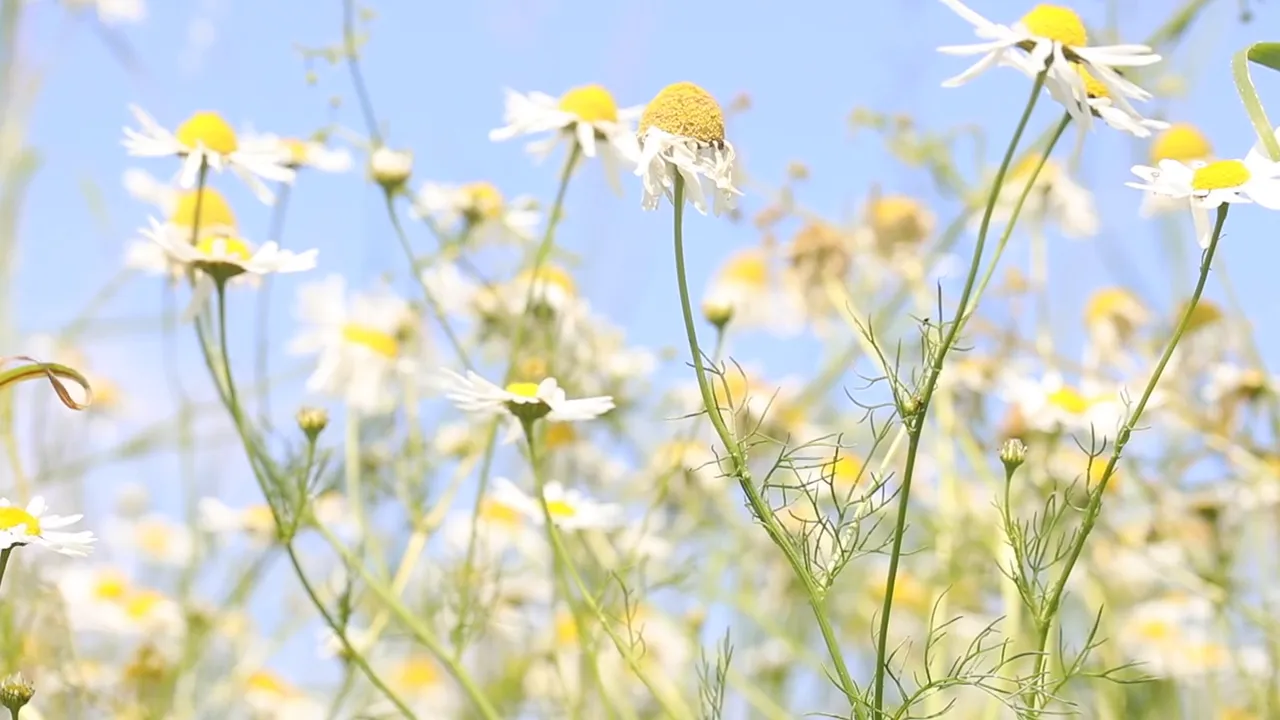
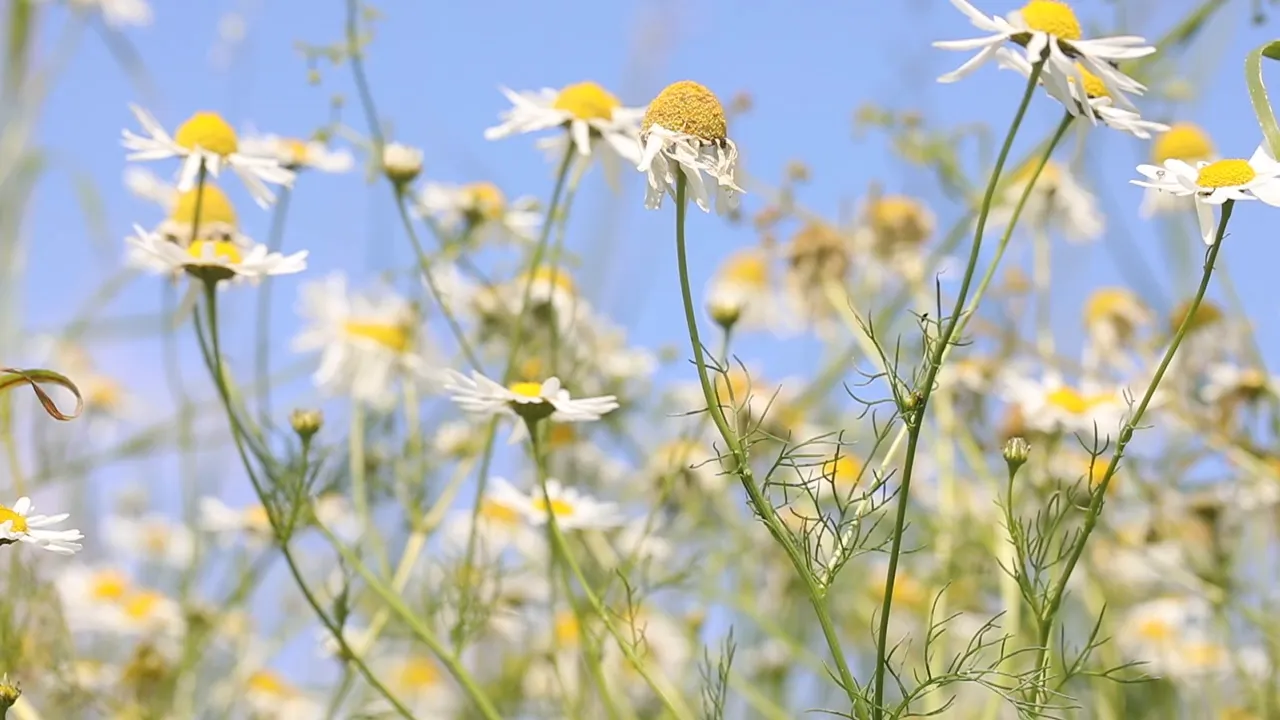
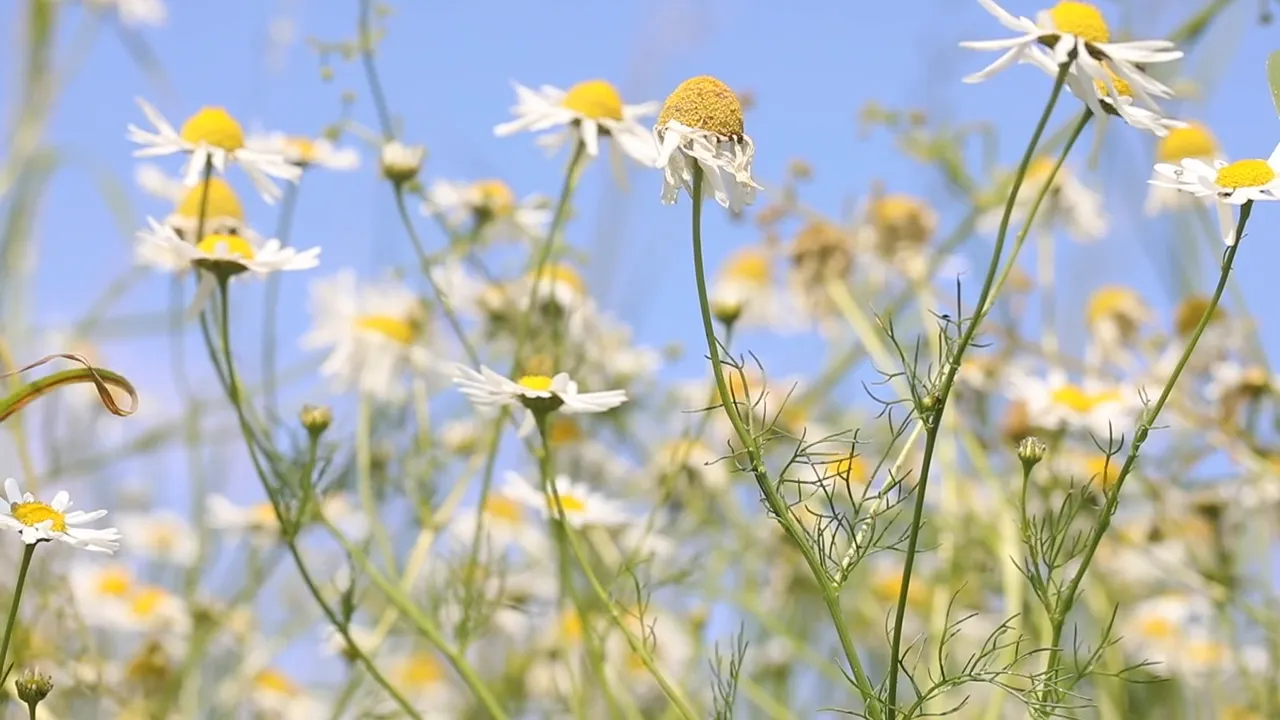
This clip barely changes between 10 and 20 seconds, so the six pictures look alike. Each one is still a separate image named after its own timestamp.
How video frames work
Every 1 Second means saving approximately one video picture per second. It does not mean saving every frame the source contains. For example, a five-second clip recorded at a constant 30 frames per second contains roughly 150 video frames, while saving one picture per second gives you just five pictures, near 0, 1, 2, 3, and 4 seconds.
Choose Every 1 Second to review a clip without saving hundreds of pictures. You can also choose up to 100 evenly spaced images. This tool does not save every frame of the video.
Some videos contain more frames in one second than another. The tool saves a picture near each selected time, so the exact moment can vary slightly.
MP4 to images
MP4 to JPG: Save a video frame as a smaller, easy-to-share photo file. JPG is useful for thumbnails, presentations, and sets of many images. Choose 80%, 90%, or 100% quality in the tool.
MP4 to PNG: Save video pictures without adding JPG compression. PNG is useful for frames with text, graphics, or images you want to edit later, but its files are often larger.
Which should you choose? Use JPG at 90% for ordinary photographic frames and ZIP batches when file size matters; use PNG for text, diagrams, or frames you plan to edit. Even the 100% JPG setting can lose some detail, while PNG may produce a larger download.
PNG keeps the picture as it appears in the video, but it cannot restore detail that is already missing. The tool saves every picture in a batch using the same JPG or PNG format.

JPG · 22.1 KB
PNG · 159.5 KB
Ideas to try
Use these settings to save a thumbnail, review a short clip, or browse pictures from a longer recording. Your download size depends on the source video and whether you choose JPG or PNG.
Single Frame · 1 JPG
Pause at a useful moment and save one JPG. It can become a presentation image or a thumbnail draft.
Multiple Frames · 6 images
For a 30-second video, choose Every 5 Seconds to save pictures near 0, 5, 10, 15, 20, and 25 seconds. Download these six stills in a ZIP.
Multiple Frames · 20 images
For a 60-second video, select 20 Frames to save pictures at evenly spaced times. Review the images to spot scene changes yourself.
Understand the difference
A video screenshot captures whatever is visible on your screen. If you capture a player window, the image may include controls, borders, or a scaled-down view.
A video frame extractor saves the picture from the video without the player's buttons or borders. It can save one picture or a series, usually at the video's original picture size.
Choosing a time is not quite the same as moving one frame at a time. Some recordings may show a picture just before or after the moment you select.
A picture saved from a 1920 × 1080 video will normally be 1920 × 1080 too, even if the video preview looks smaller on your screen.
Saving a picture will not make your original video clearer. Choose PNG to avoid extra JPG compression, or JPG for smaller downloads. You can save up to 100 pictures at once, with a ZIP limit of about 100 MB. Very high-resolution videos may not work on every device.
Choose an MP4, MOV, or WebM file up to about 210 MB. Some phone and camera recordings will not play in every browser. If your video will not open, try converting it to an H.264 MP4.
Your video stays on your device. The tool extracts pictures in your browser without sending the video to our editing server. No account or watermark is needed. Large videos may take longer, especially on phones.
Quick fixes
If an image looks wrong, the source video will not open, or a ZIP exceeds the limit, try the fix that matches what you see.
Some iPhone MOV videos cannot play in every browser. If yours will not open, try another browser or convert the recording to an H.264 MP4.
Play the original video to confirm there is a visible picture at that time. Choose a slightly different moment using the time field or the 0.1-second controls, then extract again. Some videos may show a picture from just before or after the time you selected.
Taking pictures at different times does not guarantee different images. If the scene hardly changes, several pictures can look identical. Try a longer interval.
Short intervals across long videos create many pictures. Increase the interval, choose a fixed image count, or narrow the Start and End times to stay within 100 images per export.
You can save about 100 MB of images in a ZIP before reaching the limit. Choose JPG instead of PNG, lower the JPG quality, or extract fewer images. If you only need one picture, switch to Single Frame.
Saving a picture cannot make a blurry or low-quality video clearer. PNG avoids additional JPG compression, but it cannot restore missing detail. Start with a clearer original whenever possible.
Choose an MP4, MOV, or WebM video. For one image, select Single Frame and choose a moment. For many images, select Multiple Frames, then choose a time interval or the number of images. Select JPG or PNG, extract, and download your images.
Yes. Select Single Frame, play or scrub to your preferred moment, and click Extract Frame. You can then preview the result and save the image as PNG or JPG at the video frame dimensions.
Select Multiple Frames, choose how often to take a picture or how many frames to distribute across the selected time range, and click Extract Frames. Download individual images or a ZIP with the whole sequence.
Yes. Open an MP4, choose JPG, and capture a frame or a series of frames. JPG is usually smaller than PNG for photos. You can set the JPG quality to 80%, 90%, or 100%.
Yes. Choose PNG as the output format. PNG saves the picture without adding JPG-style compression, but it cannot make a blurry original look sharper.
Choose Multiple Frames and set the interval to Every 1 Second. For a 30-second video, you can save a picture at 0, 1, 2, and so on through 29 seconds—30 images. The 30-second endpoint is not included.
Choose PNG to save the picture without extra JPG compression. The image normally keeps the video's picture dimensions, but PNG cannot remove blur or other quality issues already in the video.
A screenshot captures whatever appears on your screen, potentially including controls or a resized preview. A frame extractor saves the video picture itself. You can choose one moment or create many images at regular intervals.
You can try MOV and WebM along with MP4. Some MOV and WebM files will not open in every browser, particularly recordings made with HEVC or ProRes. If yours fails, try an H.264 MP4.
The tool goes to the time you choose and saves the picture it finds. Some videos may show a moment just before or after your selection. The 0.1-second buttons move through time, not exactly one frame at a time.
You can export up to 100 images at a time. A ZIP can contain about 100 MB of images. If you reach the limit, choose JPG, use fewer frames, or select a shorter part of the video.
No. You can save one picture at a chosen time, or up to 100 pictures spread across part or all of a video. It does not save every single frame from the original recording.
If very little changes between the times you choose, the saved pictures may look the same. Try a longer interval or select a different moment.
No. Your video stays on your device while the tool saves pictures in your browser. Longer or larger videos may take more time or memory.
Choose one frame or save a series of JPG or PNG images. No account needed—your video stays on your device.
Extract Video Frames