Choose your video
Select an MP4, MOV, or WebM file. We show its original pixel dimensions. Some files may not open in every browser.
Free online video resizer
Resize MP4, MOV, and WebM videos in your browser. Choose exact dimensions and Fit, Fill, or Stretch to change the picture shape. Free, no signup or watermark.
Free online video resizer
Choose MP4, MOV, or WebM, set a new width and height, and download an MP4.
Up to about 210 MB · No watermark · Stays on your device
Quick answer
Resizing changes the width and height of your video in pixels. A 1920 × 1080 video can become 1280 × 720 without losing the edges of the picture, or you can place it on a 1080 × 1920 vertical canvas. Choose Fit to keep everything, Fill to fill the canvas by cropping, or Stretch to change the picture's proportions.
Resizing does not shorten your video or guarantee a smaller download. If you only want to remove unwanted edges, use the video cropper instead.
Select an MP4, MOV, or WebM file. We show its original pixel dimensions. Some files may not open in every browser.
Choose 16:9, 9:16, 1:1, 4:5, or custom width and height. Use Fit to keep everything, Fill to crop the edges, or Stretch to change the picture shape.
Check the live framing preview, select Create Resized Video, and download a new MP4. Compatible sound stays unless you turn it off.
Choose a resolution
Changing a video's resolution means choosing its width and height in pixels. For example, resize a 1920 × 1080 MP4 to 1280 × 720 to make an HD version while keeping its original 16:9 picture shape. You can also create square and portrait output frames.
| Preset | Aspect ratio | Dimensions | Typical use |
|---|---|---|---|
| Full HD landscape | 16:9 | 1920 × 1080 | High-resolution widescreen video |
| HD landscape | 16:9 | 1280 × 720 | Smaller widescreen output |
| SD landscape | 16:9 | 854 × 480 | Lower-resolution landscape |
| Vertical | 9:16 | 1080 × 1920 | Reels, Shorts, vertical clips |
| Square | 1:1 | 1080 × 1080 | Square social posts |
| Portrait | 4:5 | 1080 × 1350 | Tall feed video |
| Classic | 4:3 | 1440 × 1080 | Older video and classic screens |
You can export up to about 2.1 million pixels (for example, 1920 × 1080 or 1080 × 1920), with neither side longer than 1920 pixels. Width and height must be even numbers. Keep Lock Aspect Ratio on to preserve the picture shape, or turn it off to enter a wider or taller size.
For a straight 1080p-to-720p resize, the 16:9 composition stays the same while the total pixel count drops from 2,073,600 to 921,600—about 56% fewer pixels. That is a change in resolution, not a prediction of how many megabytes the file will save.
See the actual dimensions
We resized a 30-second sample video from 1920 × 1080 to 1280 × 720. The full widescreen picture stayed visible, and the video still ran for 30 seconds.
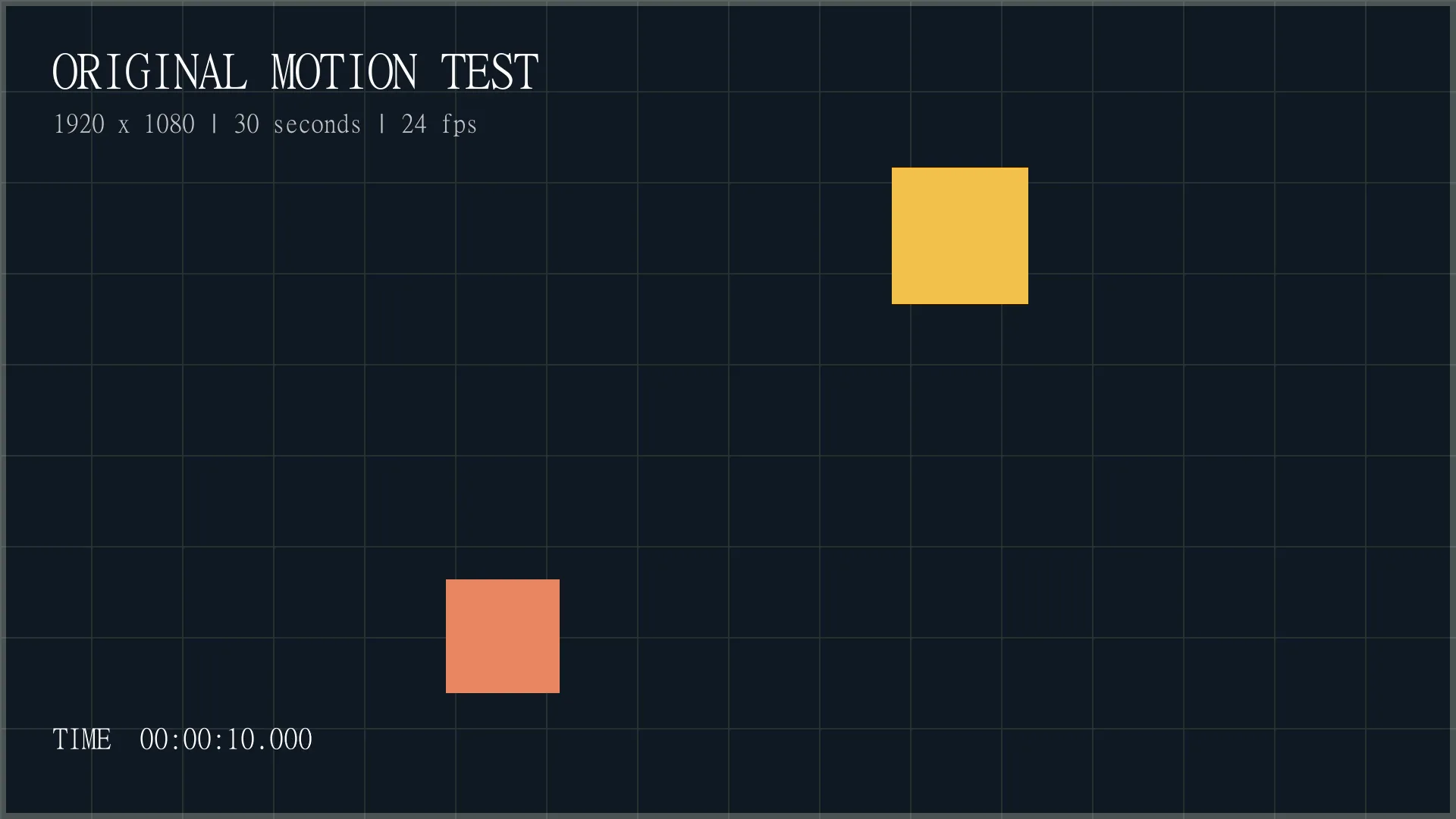
1920 × 1080 · 30 seconds · about 394 KB
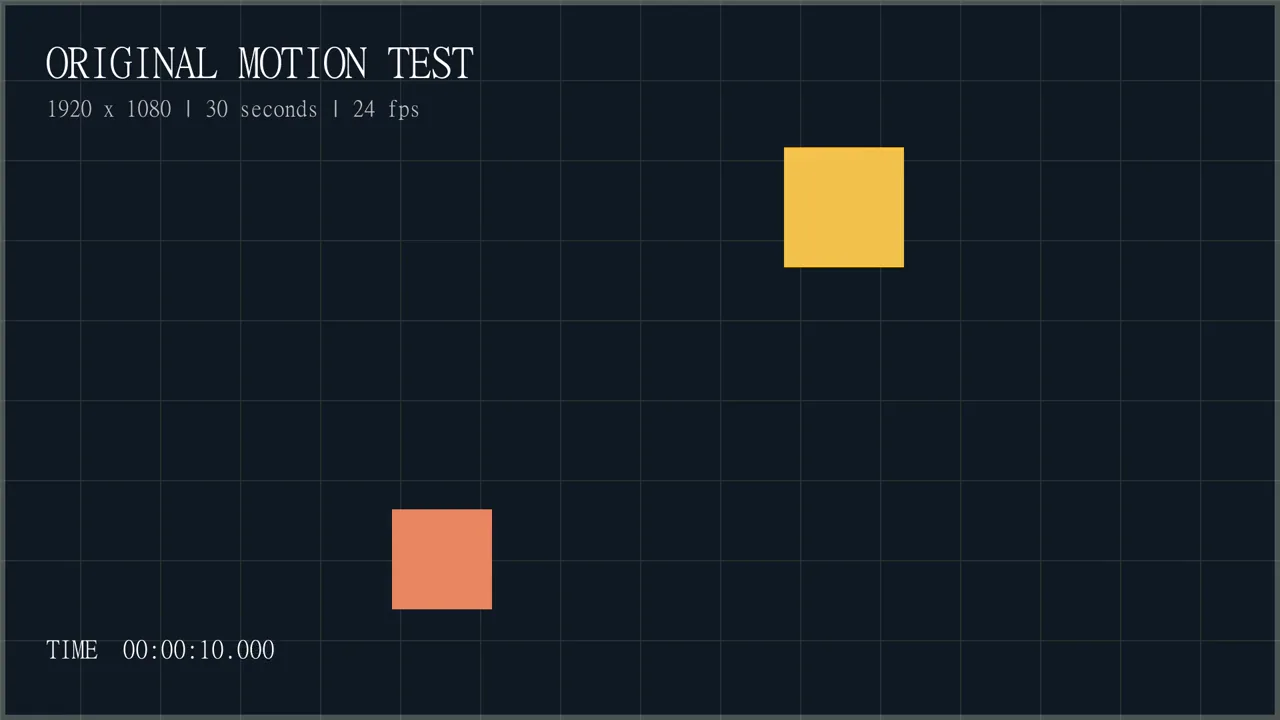
1280 × 720 · 30 seconds · about 262 KB
Both versions were saved with the same quality settings and no sound. This sample became about 132 KB smaller, but your result may vary depending on the footage, sound, and export settings. See the full crop, trim, and resize comparison.
Change the frame shape
Aspect ratio describes a video frame's shape, not its overall file size. 16:9 is wide, 9:16 is tall, 1:1 is square, and 4:5 is a portrait shape often used for social posts. Choose a preset above or enter your own width and height.
Turning a horizontal 16:9 video into a vertical 9:16 video requires a choice: preserve the original scene with borders, crop the sides, or stretch the picture. Those options create very different results even when they all export at 1080 × 1920.
For a step-by-step comparison, read how to make a horizontal video vertical.
Fit, Fill, or Stretch
Choose what happens when the original picture and new frame have different proportions. The tool shows the change before you create your resized MP4.
Keep the full picture
Fit scales the original video to stay completely inside the new canvas. If the original and output aspect ratios differ, the unused area is filled with a black, white, or gray background.
Best for group shots, gameplay, tutorials, and videos where the sides must remain visible.
Fill the frame
Fill scales the video until it covers the full output canvas. Parts of the outer edges are cropped when the aspect ratios differ. Fill crops from the center, so check that your subject stays visible.
Best for vertical clips when the important subject stays near the center.
Change the picture shape
Stretch changes the picture's horizontal and vertical proportions to fill the target size. Nothing is cropped and there are no added borders, but the result may look distorted.
Best for deliberate wide, tall, or funny visual effects and stretched video memes.
Preview the difference
See the same wide video inside a 9:16 vertical frame in three ways. Compare where borders appear, which parts get cropped, and how Stretch changes the picture shape.
All of the original widescreen video stays visible.
The frame is filled, so the outer edges disappear.
All content stays visible, but its proportions change.
These are visual previews. To make a downloadable MP4, upload your own video in the tool above.
One source, three outcomes
Imagine converting a 1920 × 1080 landscape clip to a 1080 × 1920 vertical MP4. The output dimensions are identical in all three modes, but the picture inside them is not.
| Mode | What stays visible? | Result in a 1080 × 1920 frame |
|---|---|---|
| Fit | The full landscape frame | Picture approximately 1080 × 608, with background above and below |
| Fill | Roughly the center 32% of the source width | Vertical frame filled; left and right sides removed |
| Stretch | The full source image | No borders or crop, but the original shape is distorted |
These figures show how much of the picture is visible, not how large the downloaded file will be. Fill crops from the center, so check that your subject remains in view throughout the clip.
Keep the whole picture
If you want to resize video without cropping the sides, select Fit. It scales the original picture to stay within the new frame, then fills any extra area with a solid background. Nothing is lost from the outer edges of the original image.
For instance, a 1920 × 1080 landscape video placed in a 1080 × 1920 vertical canvas will appear wide with space above and below. Select Fill only if you are comfortable cropping the edges, or Stretch if deliberate distortion is the goal.
Wider, taller, or square
Use this video stretcher to make a clip wider or taller. Choose Stretch, turn off Lock Aspect Ratio, and enter your preferred width and height. The picture fills the whole frame without borders or cropping, but people and objects may look wider or taller than normal.
Stretch works well for funny, exaggerated video effects. It applies the same shape change throughout the clip; it does not animate the distortion or follow a moving person.
Tip: stretching does not change the video length, and a 2× change in displayed proportions does not mean the exported file size doubles.
9:16
Use a tall frame for Reels, TikTok, or Shorts. Choose Fit for a complete widescreen shot or Fill for a crop that covers the phone screen.
1:1 or 4:5
Choose square or portrait for feed layouts. Check that text, faces, and product details remain visible.
16:9
Use the standard landscape shape for tutorials, presentations, and general widescreen playback.
Social platforms have their own evolving specifications and safe areas. Check the final video in the target app before publishing.
Choose the right edit
Resize changes a video's output width, height, or canvas. Crop Video removes unwanted parts of the picture. Trim Video changes the clip's running time. And Discord Video Compressor aims to make a video small enough for an upload limit.
Changing from 1920 × 1080 to 1280 × 720 can lower the number of pixels, but output MB size also depends on encoding settings, audio, and duration. If you need a particular upload size, use compression rather than relying on resize alone.
Read the crop vs. trim vs. resize comparison for measured examples and the difference between those editing operations. Need a still picture instead of a resized clip? Extract a video frame as JPG or PNG.
Choose an MP4, MOV, or WebM video up to 200 MiB (about 210 MB). Some files recorded on phones may not open in every browser. If yours does not work, try an MP4 saved with H.264 video.
Your file stays on your device. Resizing happens in your browser, so you don't need to send the video to us. Larger videos may take longer, especially on phones. Keep sound turned on to include compatible audio in your MP4.
Fix common problems
Different resize settings can create black bars, crop important details, or change a picture's proportions. Use these fixes before exporting again.
Fit keeps the entire original image, so it adds a solid background when the shapes differ. Choose Fill if you want a full screen and can lose some edges; choose Stretch only if distortion is acceptable.
Fill centers the crop and cannot follow movement. Switch to Fit to preserve everything, or use the Crop Video tool if you need to reposition a fixed crop area.
Choose Fit or Fill instead of Stretch when natural proportions matter. Do not expect a 480p source resized to 1080p to gain real detail; start with the highest-quality original you have.
Saving a new MP4 can make it larger even when the resolution goes down. If you need a smaller file for an upload, try the video compressor instead.
Some phone videos use formats that may not work in your browser. Try converting the recording to an H.264 MP4, or test a shorter clip if processing stops.
Choose a video, enter the desired width and height or pick a ratio preset, and select Fit, Fill, or Stretch. Check the preview, choose Create Resized Video, and download the MP4. There is no signup or added watermark.
Yes. The resizer accepts MP4 and can also try MOV and WebM. Some files, particularly iPhone videos recorded in HEVC, may not work in every browser. If yours fails, try converting it to an H.264 MP4.
Choose 1920 × 1080 for 1080p landscape or 1280 × 720 for 720p landscape. You can also enter your own even-numbered dimensions. Increasing resolution does not create detail missing from the original video.
Yes. Choose Fit. The entire original picture remains visible in the new video frame, with a solid background added if the shapes differ. Fill crops edges; Stretch distorts the picture instead.
Select the 9:16 preset. Choose Fit to keep the full wide video with borders, Fill to crop it to a vertical composition, or Stretch to reshape the whole picture into a vertical frame.
Choose Stretch and change the width and height to a different proportion. Stretch fills the target frame without borders or cropping, but people and objects may look wider, thinner, taller, or shorter.
Not necessarily. Smaller dimensions can help, but the saved file size also depends on picture quality, sound, and video length. If you need to meet an upload-size limit, use a video compressor.
Making a video smaller in pixels can remove fine details. Making it larger will not bring those details back, and saving again may affect picture quality. Start with the best original and check the downloaded result.
Yes. The 9:16 preset gives you a vertical video frame. Select Fit if every part of the original must remain visible, or Fill when a full-height composition matters and it is acceptable to crop the sides.
No. The video is processed in your browser on your device, without uploading it to our video-editing server. Longer videos may take more time or memory, especially on phones.
Fit preserves the complete frame, so it adds a background when the original and target shapes differ. If you need the frame completely filled, choose Fill, which crops the edges, or Stretch, which changes the picture shape.
Fill crops from the center. If it cuts off your subject, choose Fit to keep the whole picture or use Crop Video to position the crop yourself.
Saving a new MP4 can increase file size even when you reduce the dimensions. Picture quality, sound, and video length also matter. If you need a specific file size, use a compressor.
Choose a file, set the size and fit mode, then create an MP4 in your browser. No signup or watermark.
Resize My Video